Adding tags
How to add tags to one or many records, how to remove them and how to find records by tag.
Tags are short words you put on records to group them, for example "VIP", "Newsletter" or "Conference 2026". A record can have as many tags as you like, and each object has its own list of tags.
Tags on one record
Open the record, press Edit and find the Tag list field.
- Type to find a tag that already exists and choose it.
- For a new tag, type it and press Enter. The tag is also added to the object's tag list, so you'll find it on the next records.
- The x removes a tag from the record.
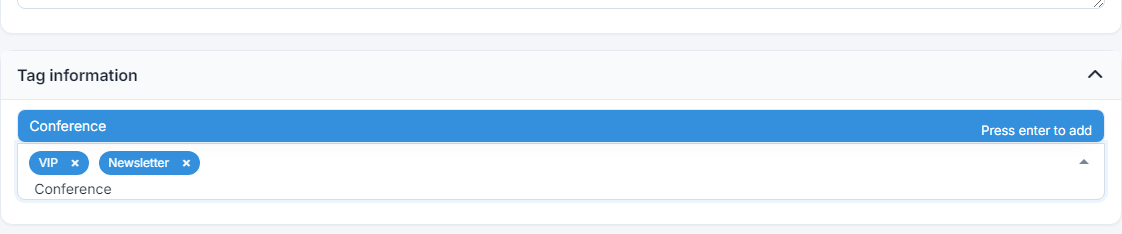
Save the record. The tags appear on the record's Data tab.

Adding / removing tags on many records
In the record list, select the records with the checkbox at the start of each row and press Actions on selected → Add tags. Choose or type one or more tags and press Apply.
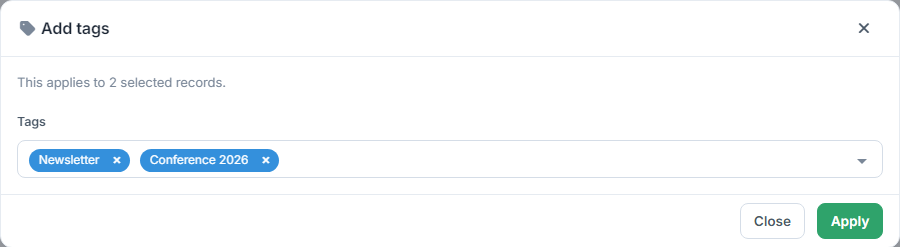
In the same way, Remove tags removes tags from the selected records. The records' other tags stay as they are. Locked records are skipped.
Adding and removing tags in bulk, like the other bulk actions, isn't available on the Free plan and needs the matching permission in your profile. See the guide List of records.
Searching by tag
To see only the records with a tag, open the list's Filters, press Add filter and choose the Tag list field and the tag you want. You can also add the Tag list column to your list from Select columns.