Email templates
Build Classic or Block email templates with record fields, send them to contacts and manage the unsubscribe list.
With email templates you prepare a message once, e.g. a welcome or a newsletter, and send it to any record you want. The fields inside the template, such as the recipient's name, are filled in automatically from the record.
The list of templates
Go to Settings → Email templates. Every new company already has a few templates for contacts, which you can change.
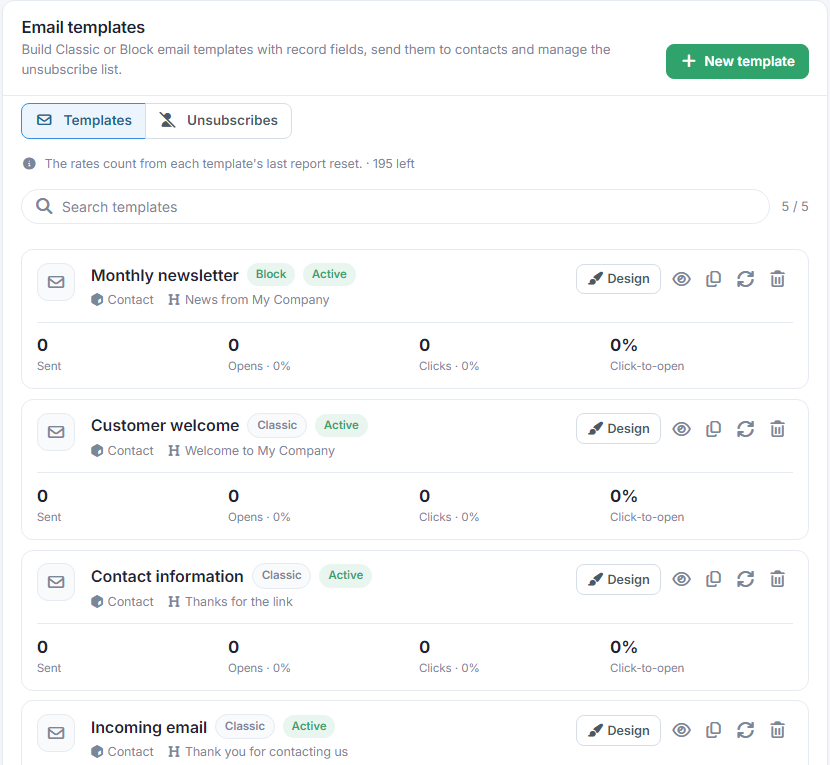
- For each template you see its type (Classic or Block), whether it's active, the object and the subject.
- Below are its statistics: Sent, Opens, Clicks and Click-to-open, i.e. how many of those who opened it also clicked a link.
- On the right are the buttons Design, Preview, Clone, Reset the report (sets the statistics back to zero) and Delete.
- The number of templates depends on your plan, and at the top you see how many are left. See the guide Subscription.
New template
Press New template and fill in:
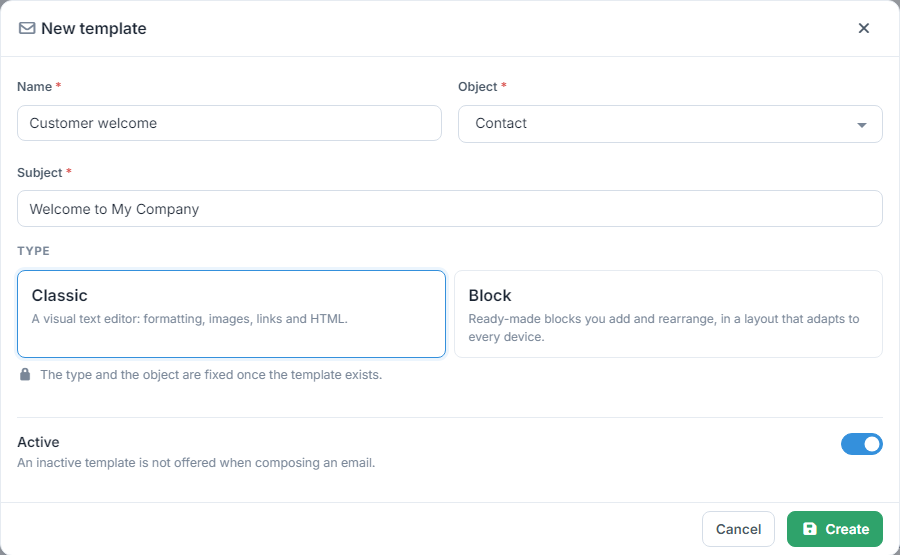
- The email's Name and Subject.
- Object: the records it's sent to, e.g. Contact. The fields you can put in the template depend on it.
- Type: Classic for a text editor, or Block for designing with ready-made blocks, in a layout that adapts to every device. Block templates are available from the Plus plan up.
- Active: an inactive template isn't offered when you compose an email.
The type and the object can't be changed after creation. Create opens the template's design straight away.
The record's fields
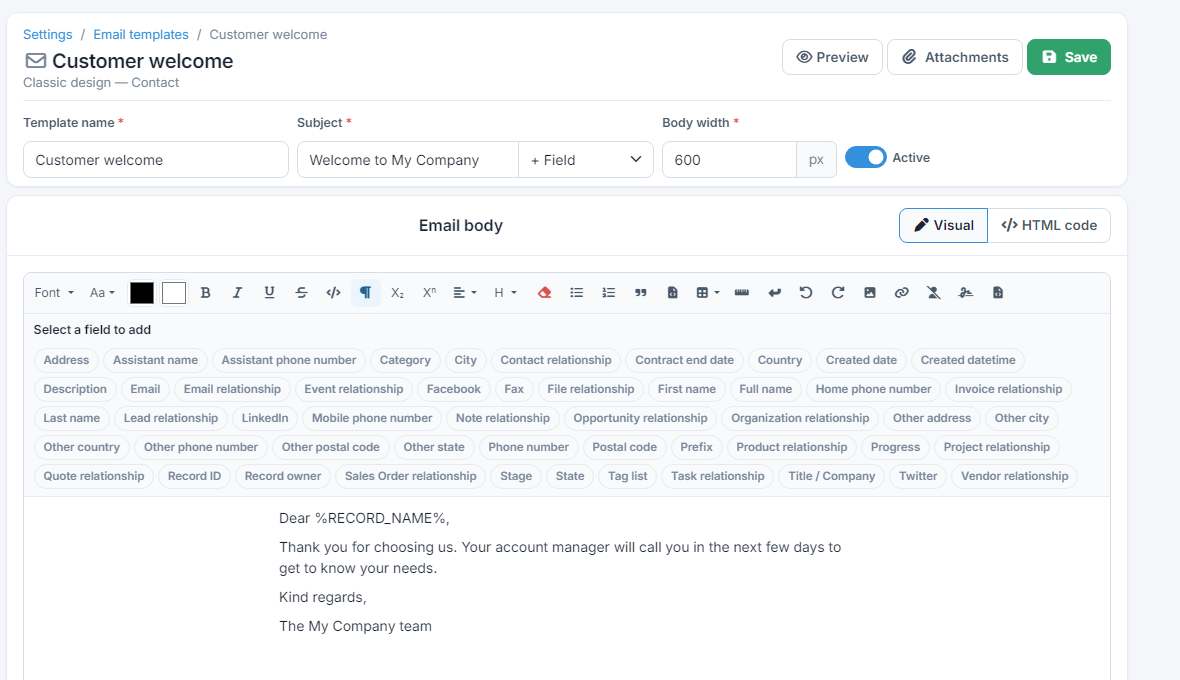
A field is written between % signs, e.g. %RECORD_NAME% for the name. You don't need to type them: in the subject you add them from the + Field list and in the body from the Select a field to add buttons. When the email is sent, each field takes the value from the recipient's record.
Classic design
A Classic template has a text editor with formatting, images, tables and links. HTML code lets you see and change the message's code directly.
Block design
A Block template is built from blocks, one below the other. In an empty template you can start from a ready-made layout (Newsletter, Offer, Reminder, Introduction, Plain letter) and change it as you like.
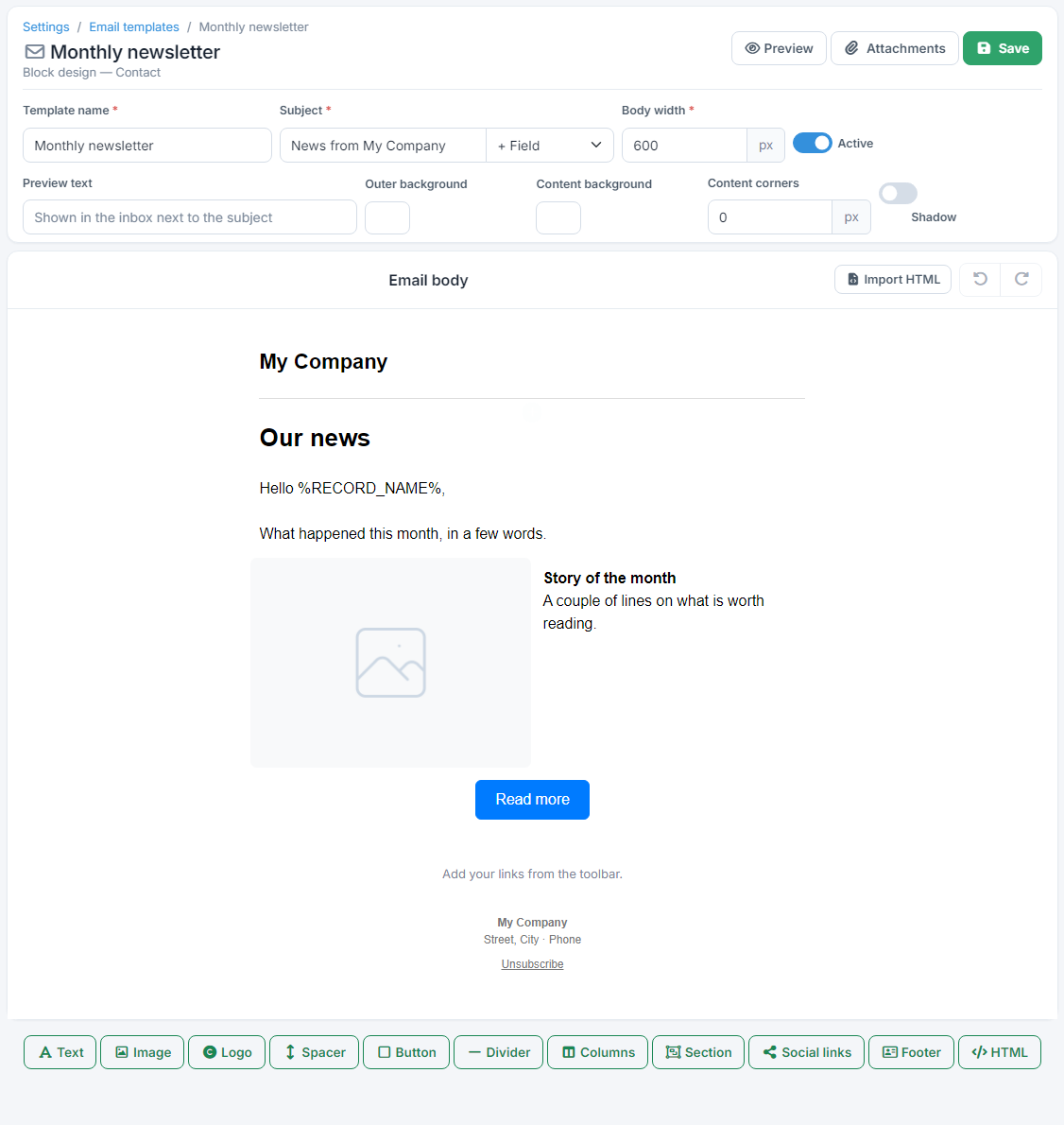
- At the top you set the Body width, the Preview text (shown in the inbox next to the subject), the background colours, the corners and the shadow of the content.
- The buttons below the body add blocks: Text, Image, Logo, Spacer, Button, Divider, Columns, Section, Social links, Footer and HTML.
- Import HTML brings in a ready-made design from HTML code, and the arrows at the top right undo or redo a change.
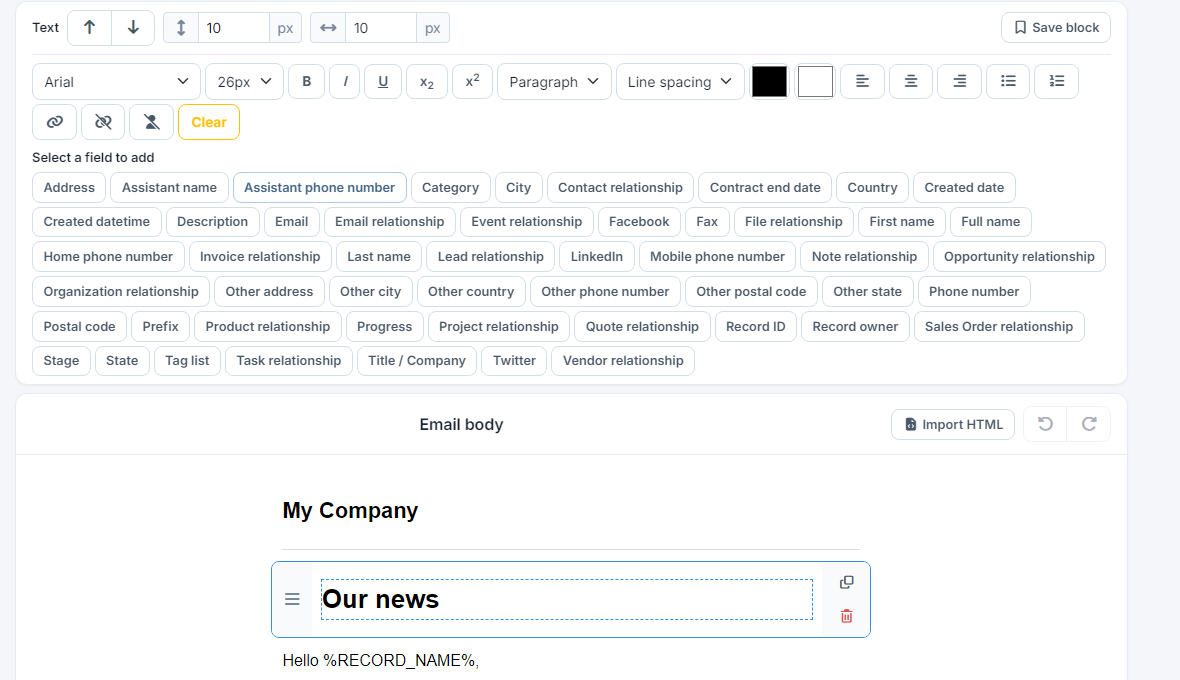
Click a block to edit it. Its settings appear at the top: for a text, the font, size, colours, alignment and the record's fields. The arrows move the block, the icons on its right copy or delete it, and the handle on the left drags it to another place. Save block keeps it so you can use it in the company's other templates too.
The Footer block contains the Unsubscribe link, with which the recipient asks you not to email them again. Put it in every newsletter or promotional email.
Saving, attachments and preview
- Press Save (or Ctrl+S). While there are changes that haven't been saved, you see the Unsaved changes label.
- Attachments adds files, up to 3 MB in total, attached to every email sent from this template.
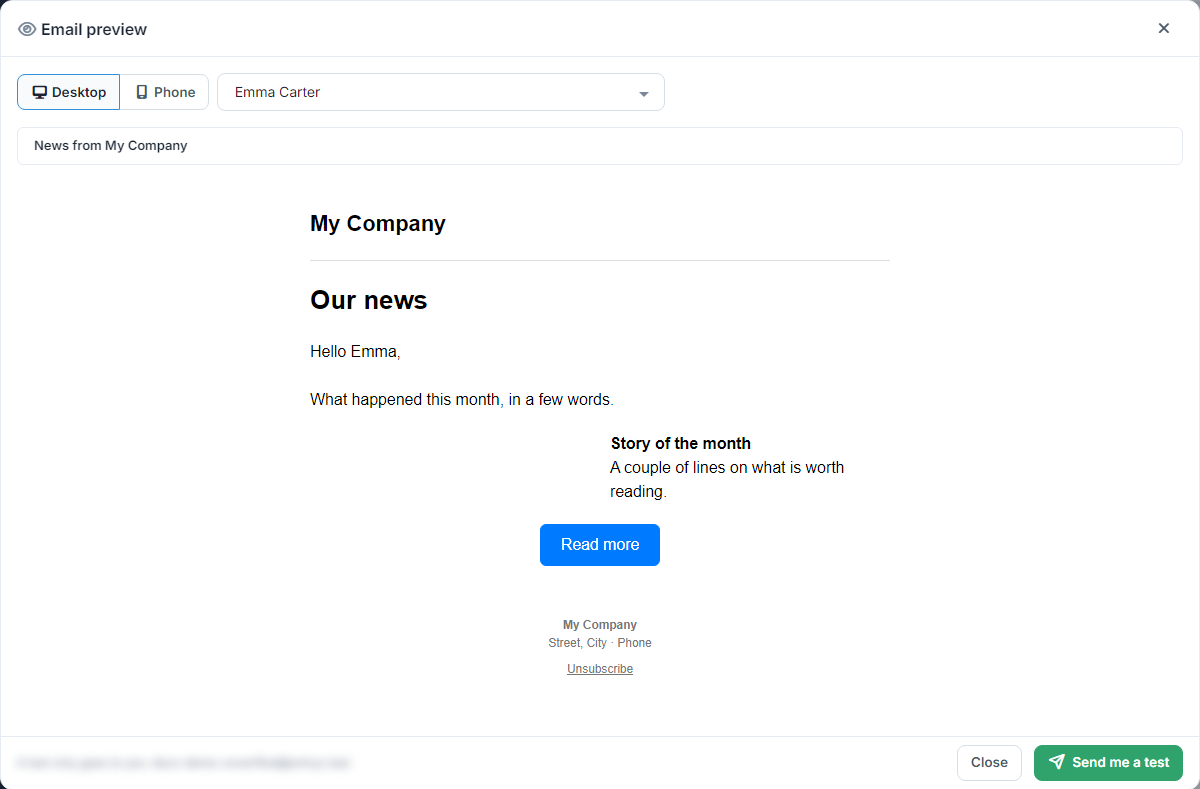
- Preview shows the email as on a computer or a phone. If you choose a record, the fields are filled in with its values. Send me a test sends it to your own email.
Sending an email with a template
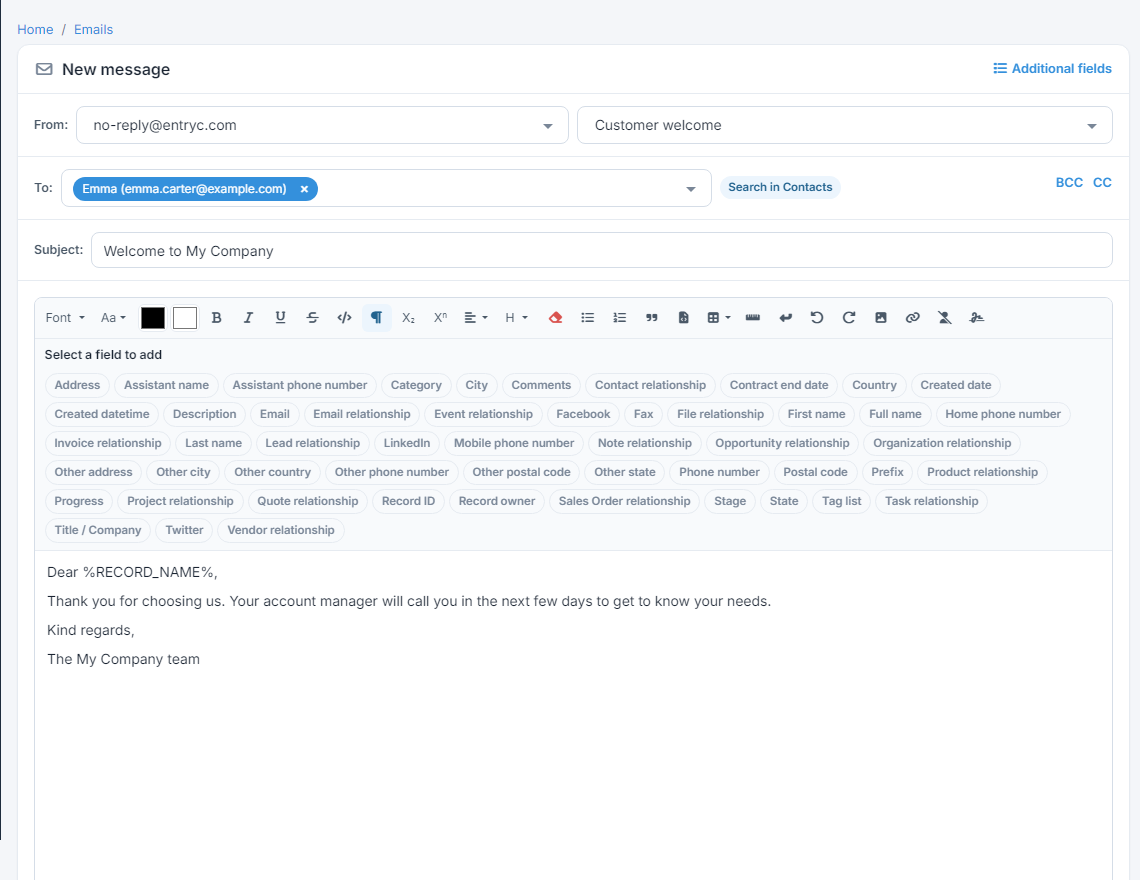
When you write a new email, e.g. from Emails or from a record's Relationships tab, choose the template in the list next to the sender. The subject, body and attachments are filled in from the template, and the recipient search runs in the template's object.
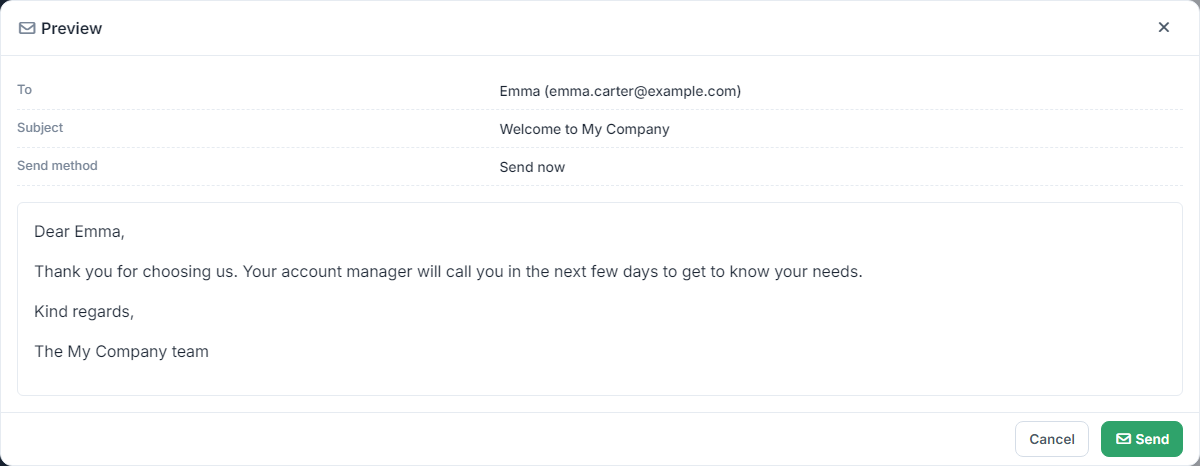
When you press Send, a preview shows the fields filled in for the recipient, in the subject and the body. Press Send again to send it.
Templates are also used in the emails sent by workflows and scheduled automations. A template they use can't be deleted, and the message tells you where it's used. If you turn it off, though, their emails won't be sent.
Unsubscribes
On the Unsubscribes tab you see the addresses that pressed Unsubscribe in one of your emails, with the date.
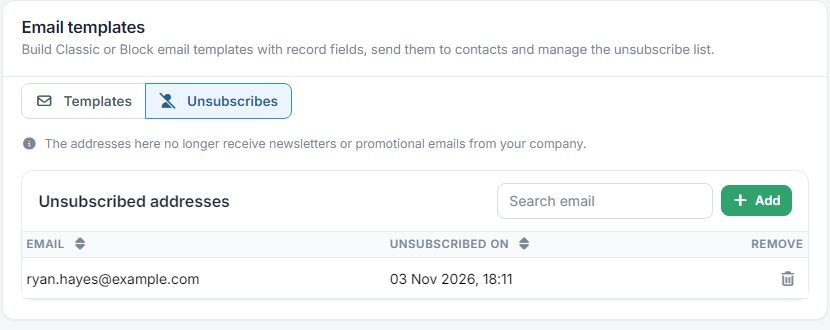
- Add puts an address on the list by hand, e.g. when someone asked you by phone.
- No email is sent to an address on the list. If it's in CC or BCC, it's removed from them before sending.
- The bin icon removes an address from the list, if the recipient wants to receive your emails again.