Record locking
Lock records by hand or automatically, so the profiles you choose can't change or delete them.
Record locking protects records from changes. A locked record can't be edited, and depending on the settings it can't be deleted or converted either, by the users of the profiles you choose. For example, you can lock leads automatically once they're closed, so they no longer change.
A record gets locked in two ways:
- Manually: a user locks it from its page.
- Automatically: it locks as soon as it matches the filters you set, when it's created or updated.
Locking settings
Go to Settings → Objects & fields, press Edit on the object and choose Record locking in the Rules group. Each object has its own settings.
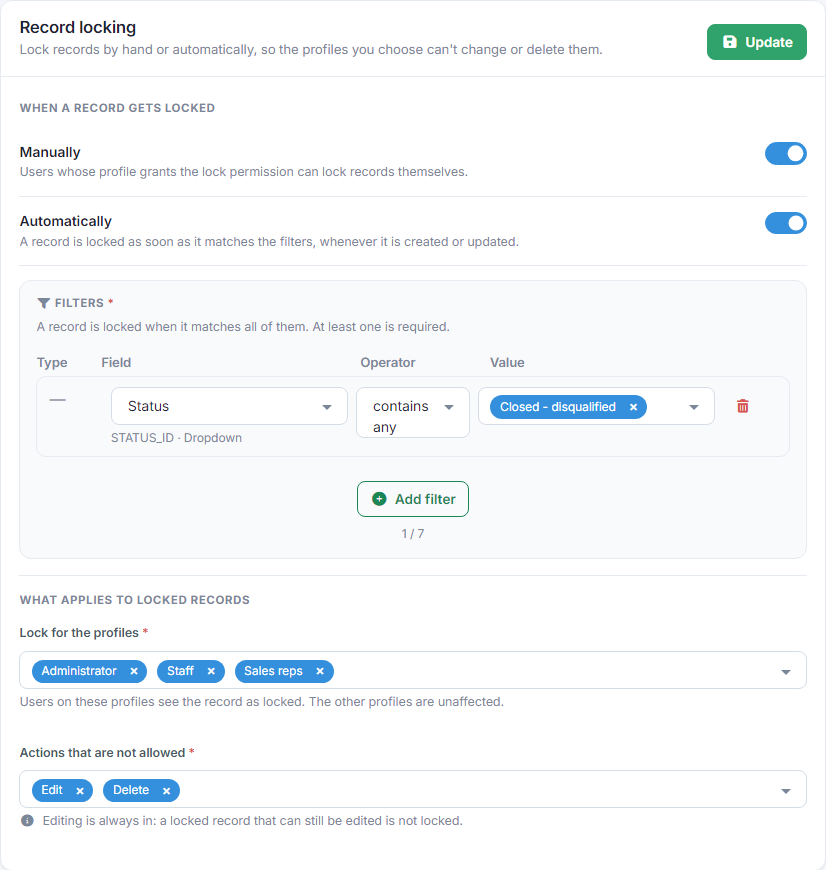
When a record gets locked
- Manually: users can lock and unlock records themselves, as long as their profile has the Lock permission for the object. See the guide User profiles.
- Automatically: set up to 7 filters (field, operator, value). The record locks when it matches all of them, every time it's created or updated. In the example, a lead locks when its Status becomes "Closed - disqualified".
What applies to locked records
- Lock for the profiles: users on these profiles see the record as locked. The other profiles aren't affected, so for example management can keep correcting a locked record.
- Actions that are not allowed: Edit is always selected. You can add Delete, Convert, and the bulk updates Tags, Change owner and Change visibility.
Press Update at the top right to save the settings.
A locked record
At the top of a locked record you see the Locked record label.

Details shows who locked it, when and why. When the record was locked automatically, the reason shown is the automatic locking process.
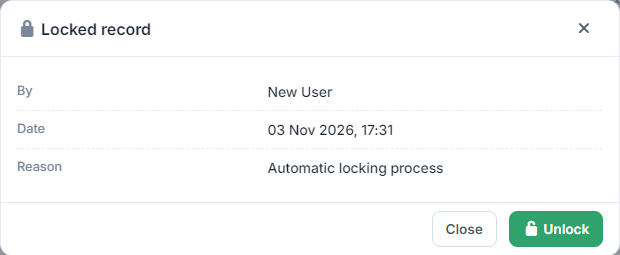
If a user on a locked profile tries an action that isn't allowed, for example editing it, the message Record is locked appears. The same applies to the list's bulk actions, where locked records are skipped, and to the API.

Locking and unlocking by hand
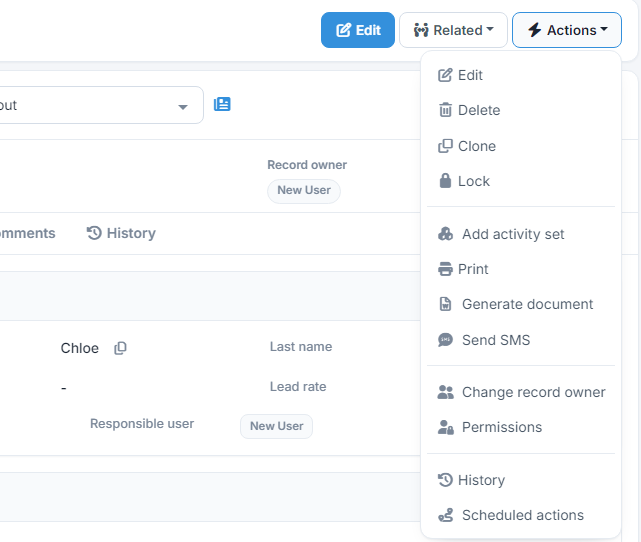
When manual locking is on, open the Actions menu inside a record and choose Lock.
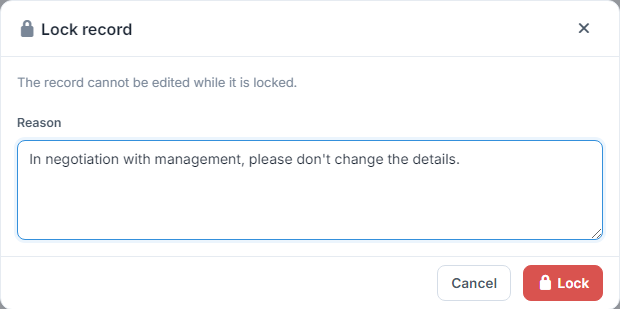
Optionally, write a Reason, so other users know why it was locked, and press Lock.
To unlock a record, press Unlock next to the label and confirm in the window that opens. Users with the Lock permission can unlock, and only when manual locking is on. An unlocked record locks again automatically if it's updated and still matches the filters.