Clients Portal
Give your customers a password-protected page with their own records, files, requests and approvals.
The customer portal is a password-protected page where your customers see their own records. For a car repair shop, for example, that means their vehicles with their service history, their upcoming appointments and their invoices, with files to download.
The customer does not become an Entryc user and sees nothing else in your CRM. They see only what you choose, and only from records linked to their own.
Before you start
- The customer portal comes with the paid plans. See the Subscription guide.
- Every company has a ready-made portal on its customers object (Customers, Patients, Owners & tenants and so on), with content that suits its company type. It stays off until you turn it on.
- To send a customer their access you need an email account of your own. See the User settings guide.
Turning the portal on
Go to Settings › Objects, open your customers object and choose Customer portal. Turn on the switch at the top.
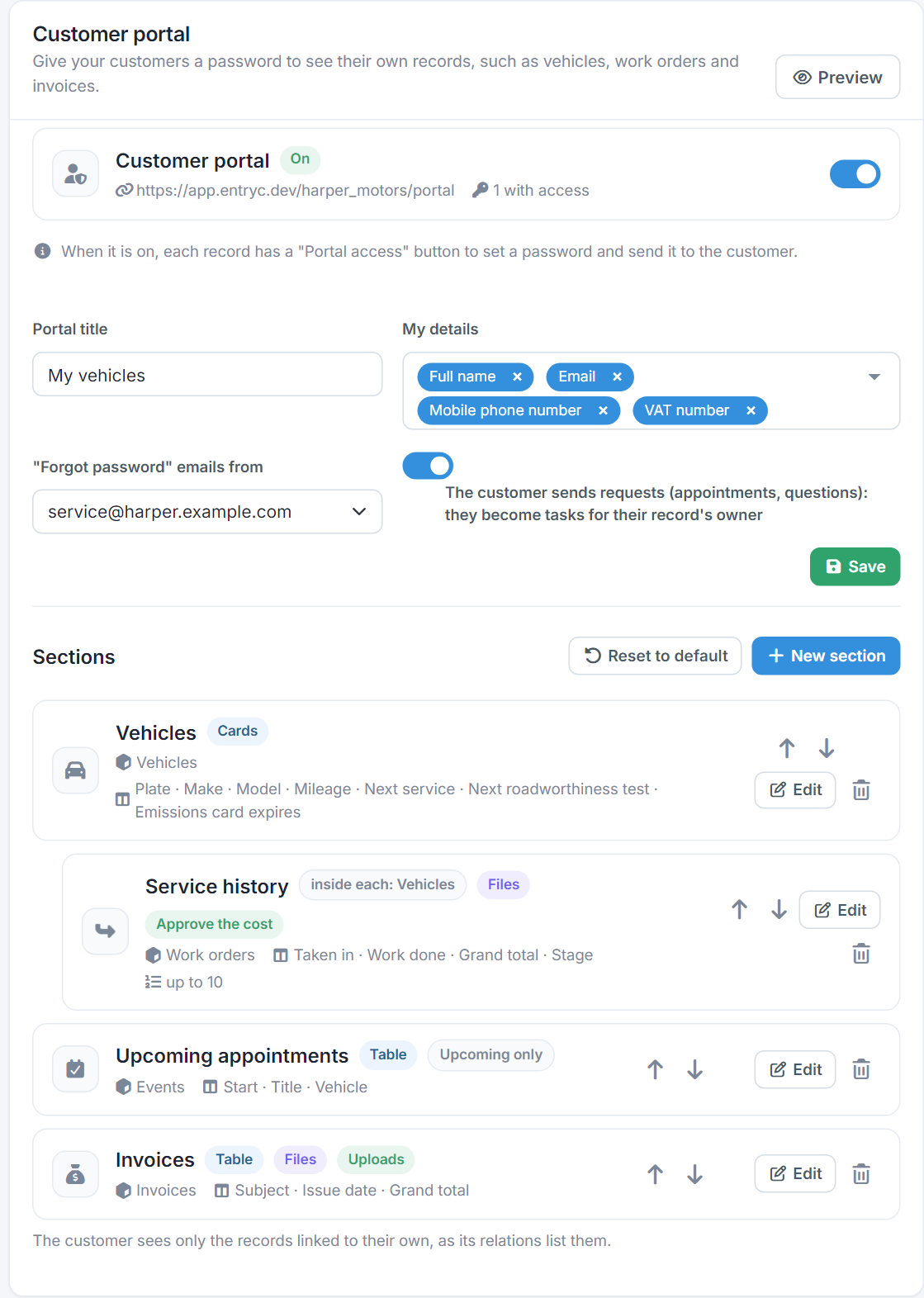
The tab also shows the portal's address (for example app.entryc.com/your-company/portal) and how many customers have access.
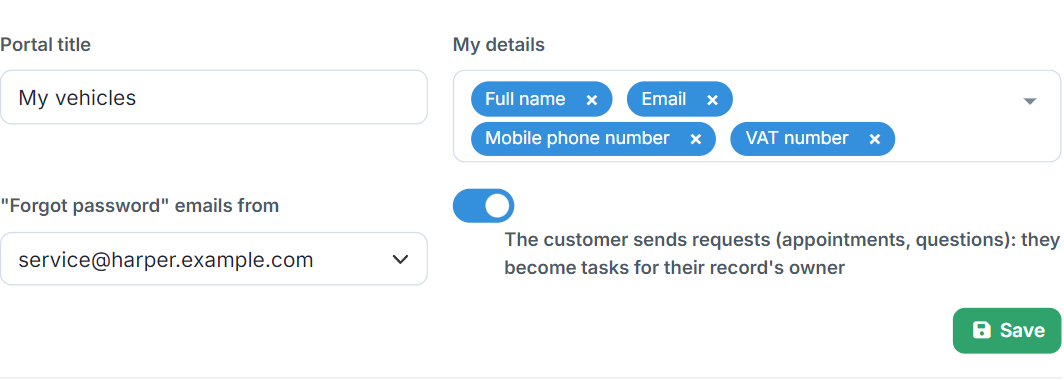
- Portal title: the title the customer sees, such as "My vehicles". Leave it empty to use the company name.
- My details: the customer's own fields, shown at the end of the page, such as full name, email, phone and VAT number.
- "Forgot password" emails from: the company email account that sends customers a link to set a new password. With no account chosen, the sign-in page tells the customer to contact you.
- The customer sends requests: the portal shows a New request button for appointments or questions. See below.
What the customer sees: sections
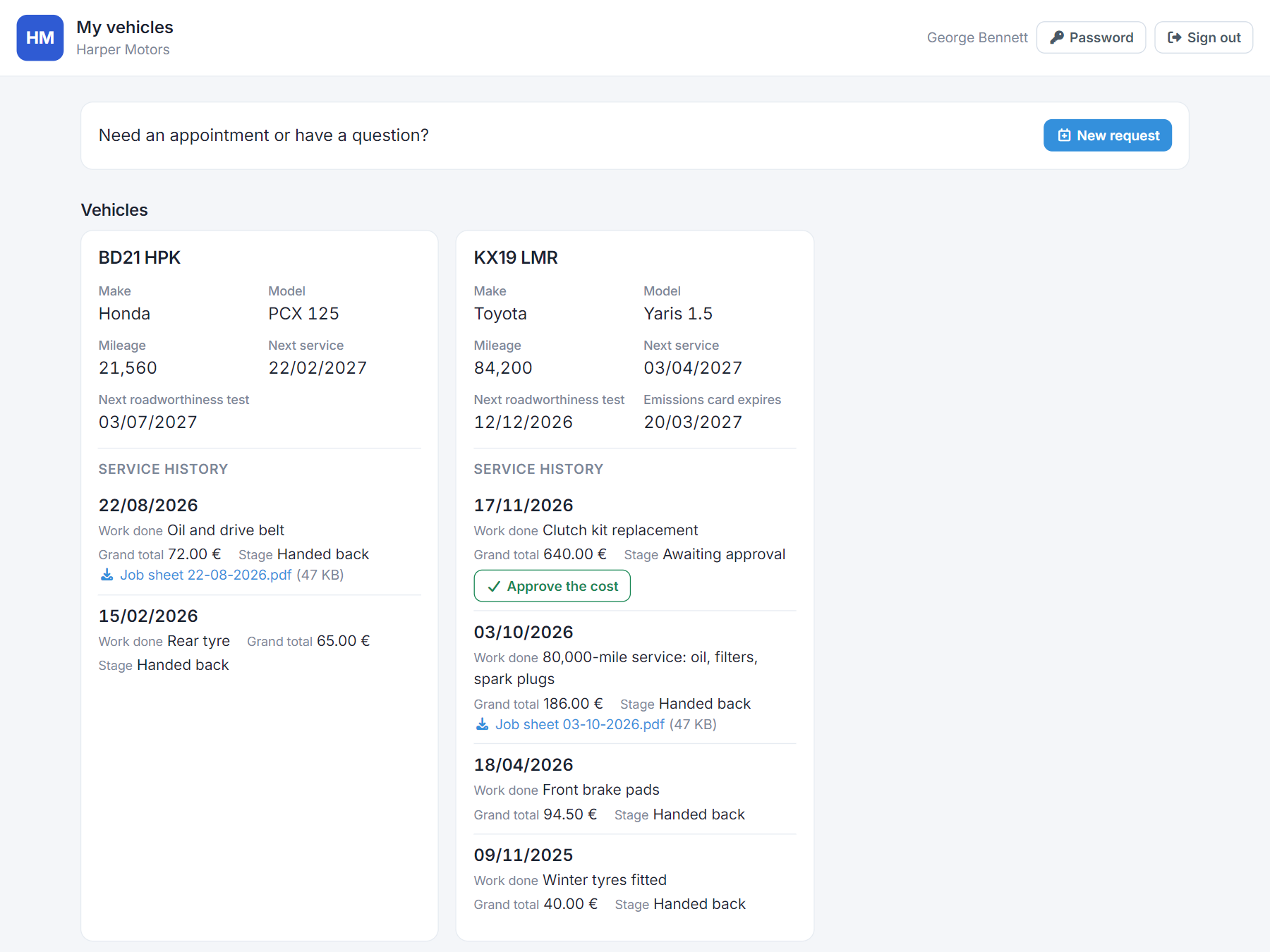
The portal is made of sections. Each section lists the records of one object that are linked to the customer, such as their Vehicles or their Invoices.
New section adds a section and Edit changes an existing one. The arrows change their order.
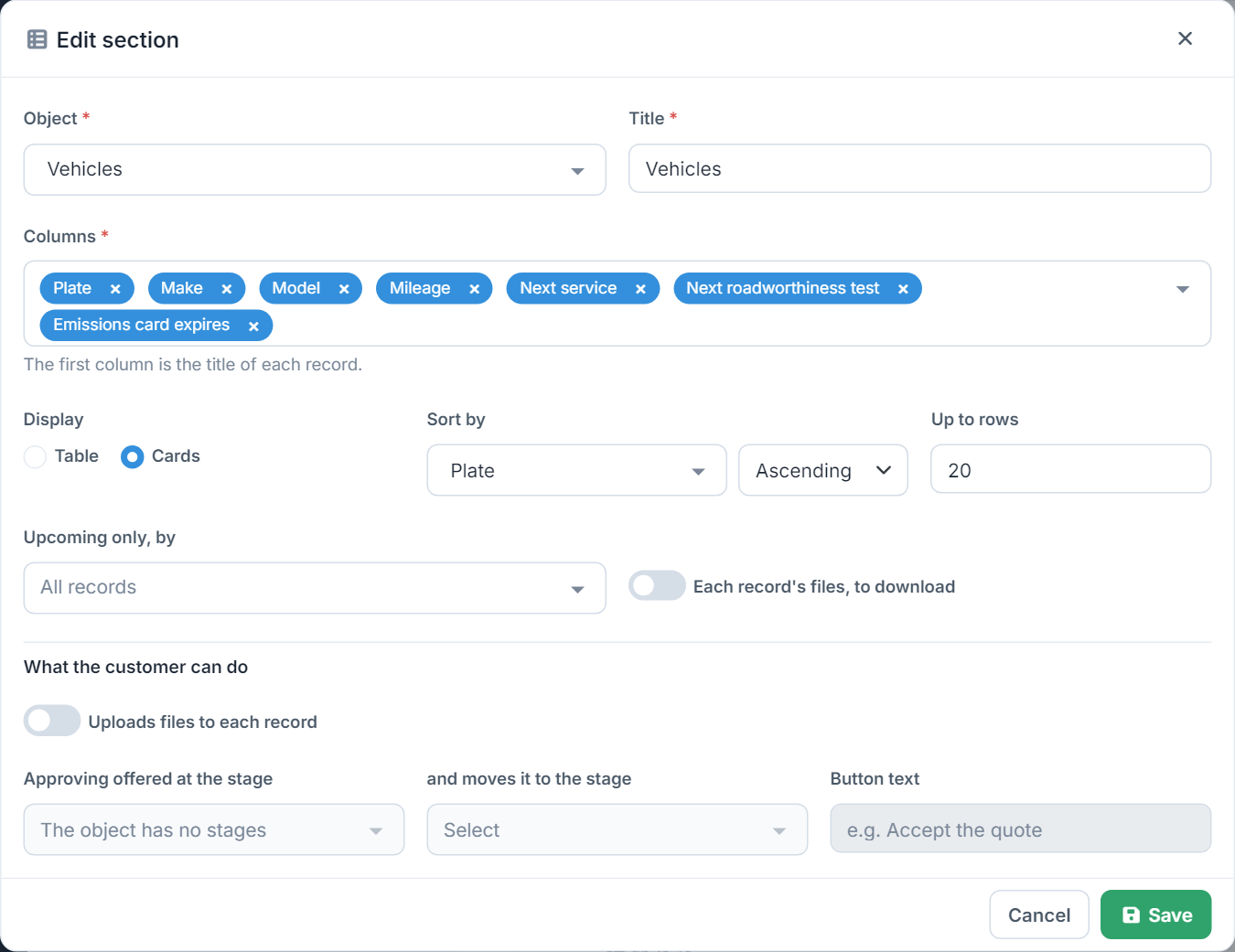
- Object: only objects linked to the customers object by a relation field are listed. See the Relationships guide.
- Columns: the fields the customer sees, in the order you pick them. The first column is the title of each record.
- Display: Table for lists such as invoices, or Cards, one card per record, for records such as vehicles.
- Sort by and Up to rows: the order and the number of records shown.
- Upcoming only, by: pick a date field to show only records from today on, such as upcoming appointments.
- Each record's files, to download: the customer downloads the files attached to the record, such as the PDF of an invoice or a job sheet.
At the bottom of the same window, under What the customer can do, you choose whether the customer can upload files to the section's records or approve them. See What the customer can do below.
A section inside a section
On a top-level section, the Section inside this one button adds a section inside each of its records. That way each vehicle, for example, shows its own service history. One level is allowed, and the inner section's object must be linked to the outer section's object.
Reset and preview
Reset to default puts the title, the details and the sections back to what your company type starts with.
Preview lets you pick a customer and see the portal exactly as they will, without signing in as them. Preview works even while the portal is off.
Giving a customer access
While the portal is on, every customer record has a Portal access button at the top and, once access is set, a Send access button. The dot next to the first button shows the status: green for active, orange for locked, grey for off.

Users who can edit the record see these buttons.
Setting a password
In Portal access, pick the login email from the record's email fields and set a password, either by typing one or by pressing Generate.
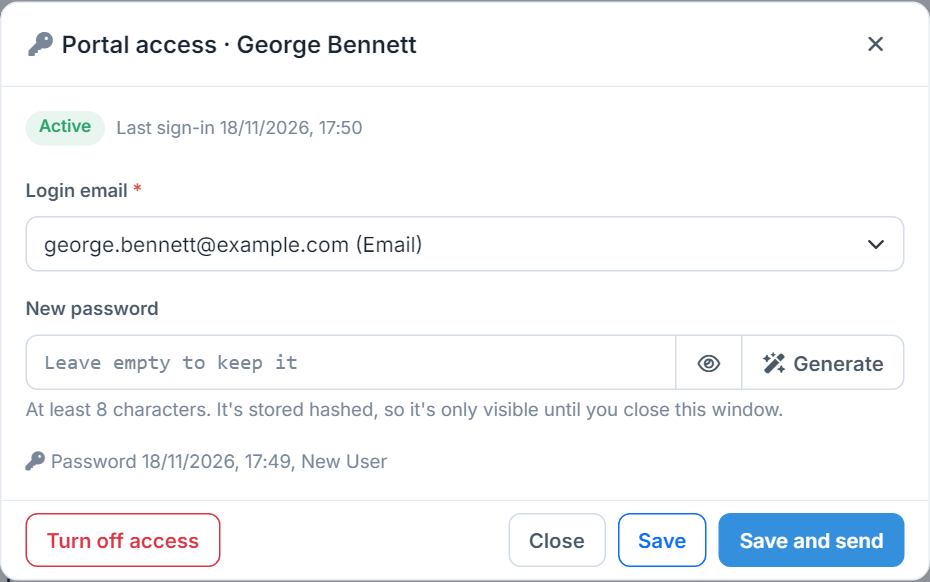
- The password has at least 8 characters. It is stored hashed, so nobody can see it again once the window is closed. If the customer forgets it, they set a new one themselves with Forgot your password? (see below), or you set a new one.
- Each login email belongs to only one customer of the company.
- A new password signs the customer out wherever they are signed in.
- Turn off access: the customer can no longer sign in and is signed out straight away.
Save and send saves and opens the send window at once, with the password in the email.
Sending it to the customer
In Send access, pick the email account to send from. If the record has more than one email address, you also pick which one it goes to.
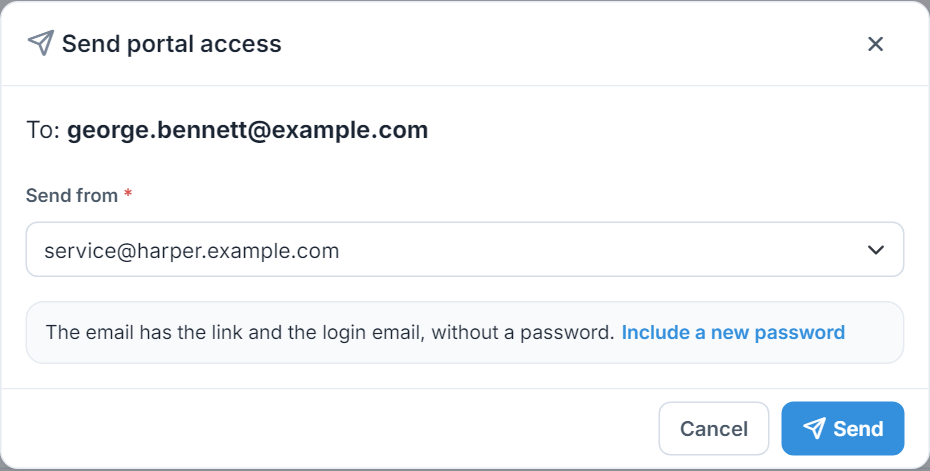
- The email has the portal link and the login email.
- The password goes into the email only if you have just set it. Otherwise press Include a new password: a new password is set and sent with it.
- The email shows in the record's Emails, without the password.
The portal for the customer
The customer opens the portal's address and signs in with their email and password. The page carries your company's name and logo.
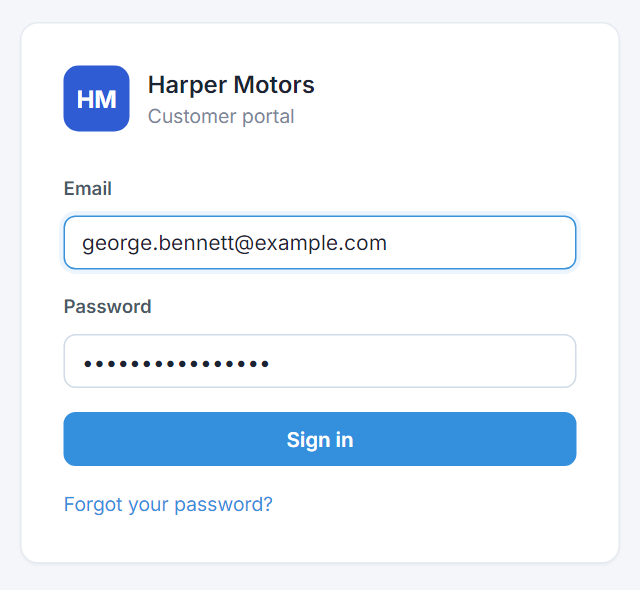
Once signed in, they see the sections in the order you set, with their details at the end.
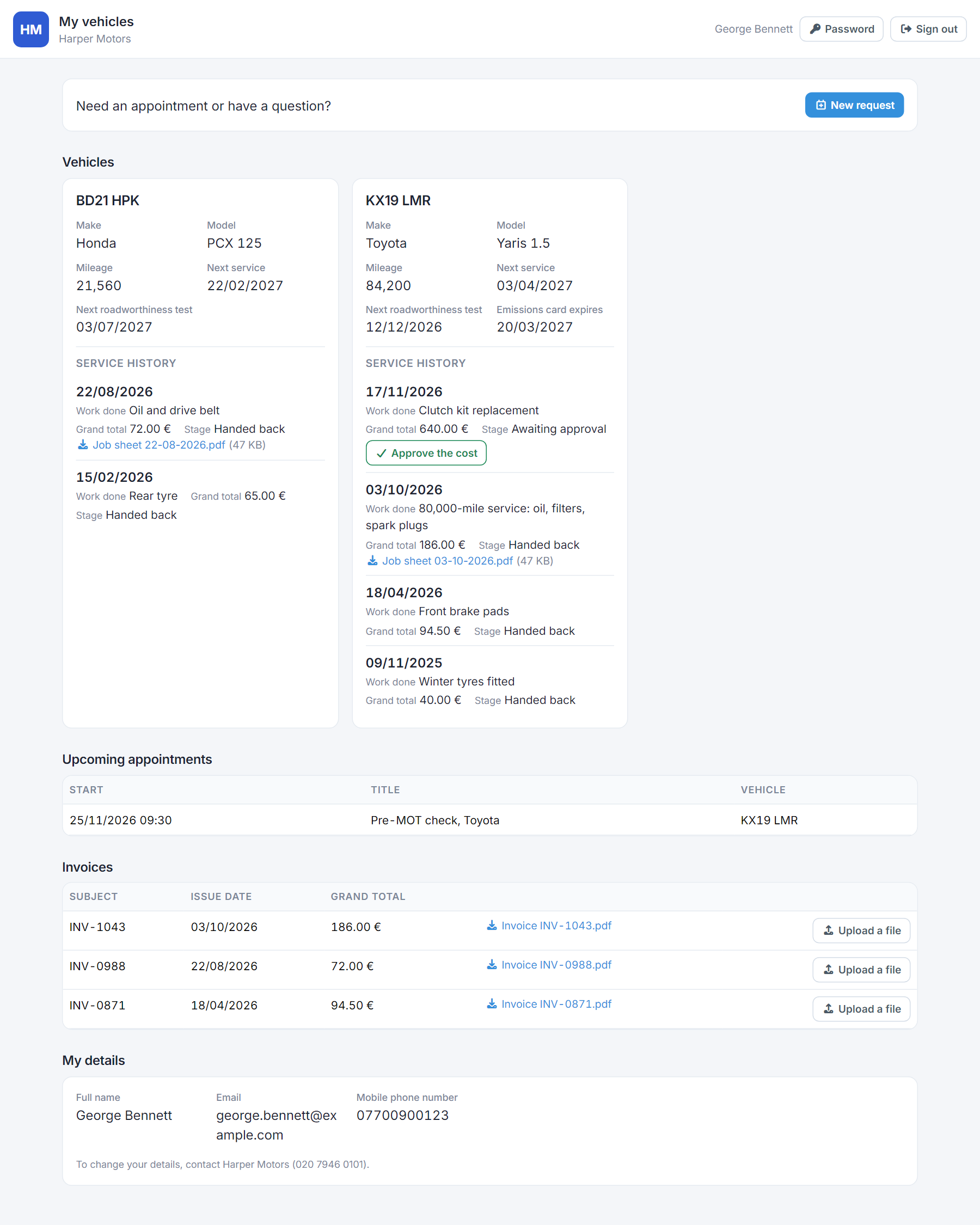
- They see only the records linked to their own, as the relations of their record list them.
- They can't change any record. They download files, change their password with the Password button, and do whatever you allow in the sections.
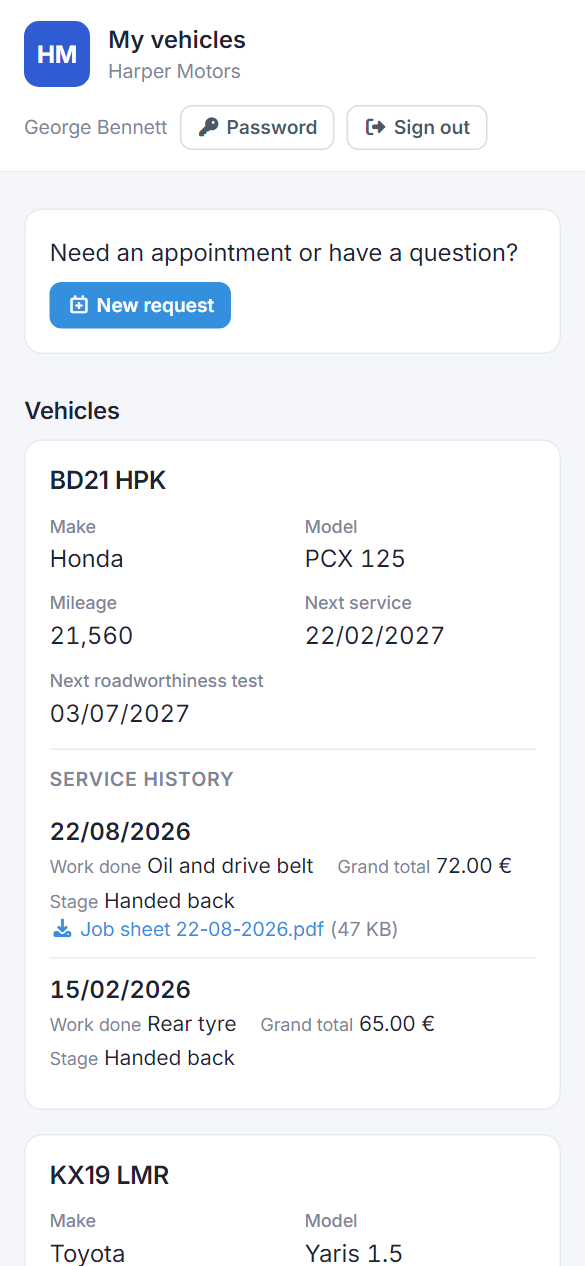
- The portal works on phones too.
Forgot your password?
If the portal has an account for "Forgot password" emails, the sign-in page has a Forgot your password? link. The customer types their login email and gets a link to set a new password.
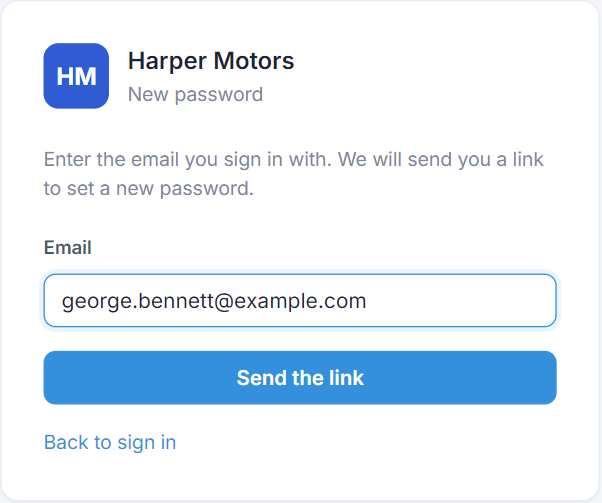
- The link works for one hour and only once.
- The new password also unlocks the account if it was locked, and signs the customer in.
- The page gives the same answer for every email, so it doesn't reveal who has access.
What the customer can do
Besides looking, the customer can do whatever you turn on. Each action reaches the record's owner as a notification, and runs the object's workflows the way a user's save does: a request and an uploaded file as new records, an approval as a change. An approval that moves the stage also runs the new stage's activity set.
Requests
With New request the customer writes a subject, a preferred date and a message, for example to book an appointment.
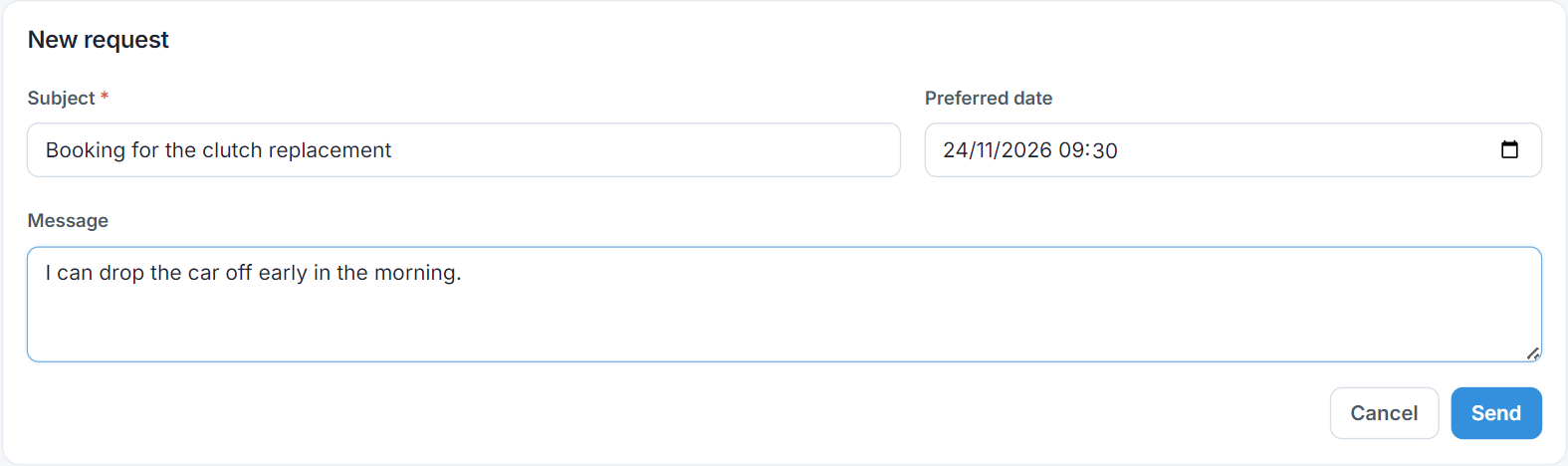
The request becomes a task for the owner of the customer's record, due on the date they asked for, and shows in the customer's relations. The owner gets a notification and an email with links to the task and the customer in the CRM. Either can be turned off in the notifications of User settings ("Customer request from the customer portal"). A customer can send up to 10 requests a day.
Uploading files
In a section with Uploads files to each record turned on, each record has an Upload a file button, for example for the proof of payment of an invoice.
- Accepted files: PDF, images, Word, Excel, text and ZIP, up to 10 MB.
- The file goes into the Files of the record and of the customer, and counts toward your plan's storage.
- For the customer to see it on the portal too, also turn on the section's files to download.
Approving
In a section whose object has stages, you can set up approving: while a record is at one stage, the customer approves it with a button and it moves to another stage.
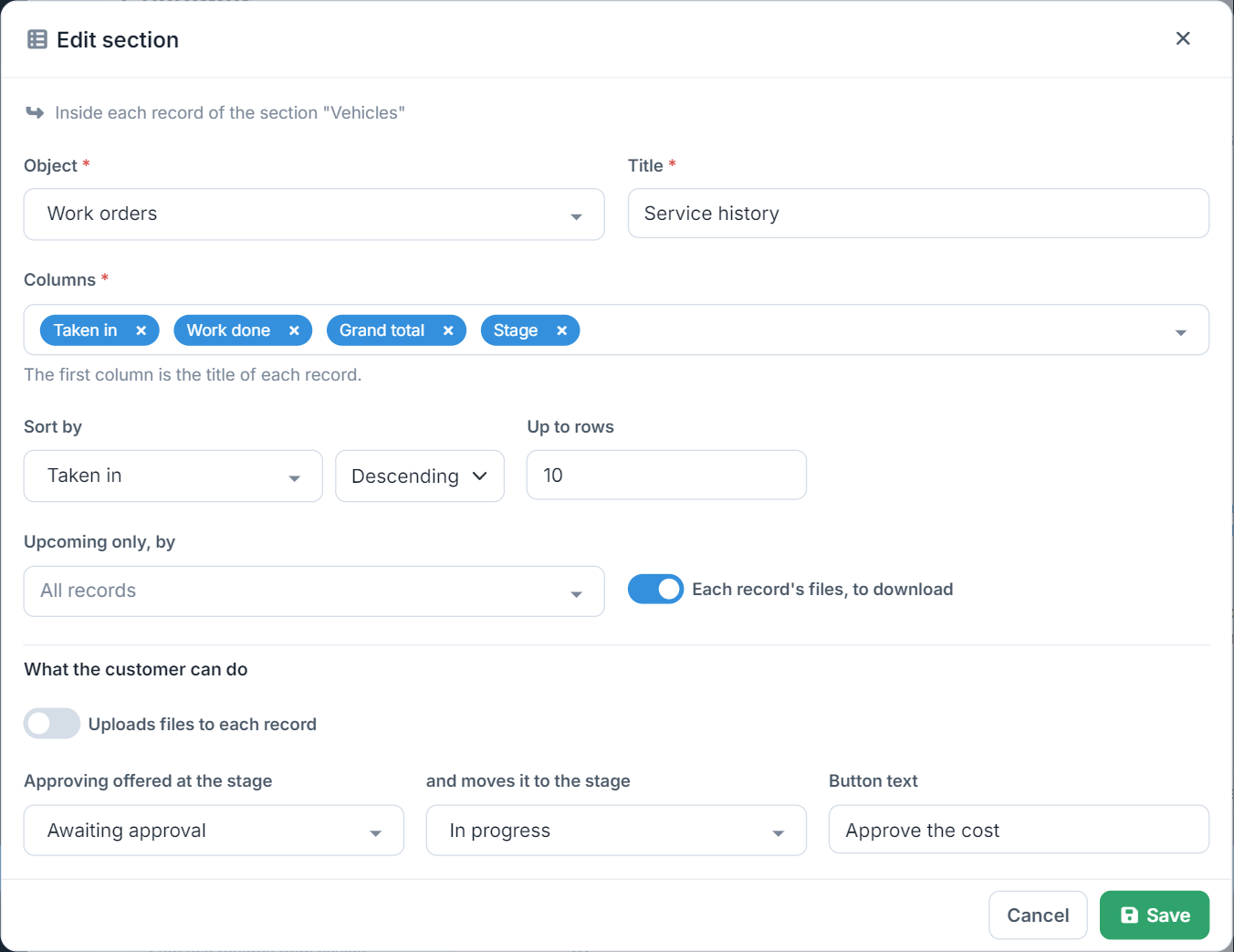
For example, a work order at the Awaiting approval stage shows the customer an Approve the cost button, and once approved it moves to In progress. The button asks for confirmation and shows only while the record is at the first stage. The change shows in the record's history.
The portal link in emails
In Email templates you can add a link or a button to the portal. In a text block press Customer portal link, or in a button's address pick Link to the customer portal. When the email is sent it becomes your company's portal address (%PORTAL_URL%).
Security
- After 5 wrong passwords in a row the customer's account locks. You unlock it in Portal access with Unlock, or by setting a new password.
- At the same time, the IP address the attempts came from is blocked for one hour.
- The customer can upload files to and approve only records the portal shows them.
- If the customer's record is deleted, the portal is turned off, or the company's plan no longer includes it, the customer can't sign in.