Scheduled automations
Automations that run every day at a set time and send a notification, email, SMS or webhook for the records that match their filters.
A scheduled automation runs once every day, at a time you set. It finds the records of an object that match its filters and, for each one, sends a notification, an email or an SMS, or calls a webhook. For example, every morning at 08:00 it can send a notification about the tasks due tomorrow.
Before you switch an automation on
Each action runs once for every record that matches. If the automation finds 120 records, 120 emails, 120 SMS or 120 webhooks are sent. So:
- Check that your email account, SMS provider and webhook can handle that volume. Many emails at once may be marked as spam or temporarily block your account.
- How many records? on the form shows how many records your filters find today.
- Try the automation first with filters that find only a few records.
Entryc isn't responsible for the consequences of running your automations, such as blocked accounts or failed sends.
The list of automations
Go to Settings → Scheduled automations.
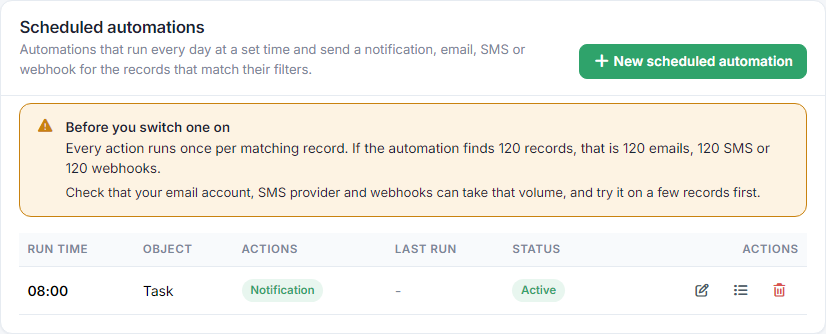
- For each automation you see the run time, the object, the actions it takes, when it last ran and whether it's active.
- The pencil changes it, the list icon opens the Execution log and the bin icon deletes it.
- Scheduled automations aren't included in the Free and Basic plans. The number of active automations per object depends on your plan. See the guide Subscription.
New scheduled automation
Press New scheduled automation and fill in:
- Object: the object whose records are checked. It can't be changed after creation.
- Run time: the hour of the day, in your company's timezone. The automation runs within that hour.
- Active: an inactive automation doesn't run.
- Filters: which records it finds, up to 20 filters. At least one is required, so the automation doesn't act on every record. Date filters, such as "tomorrow" or "in N days from today", are worked out again every day.
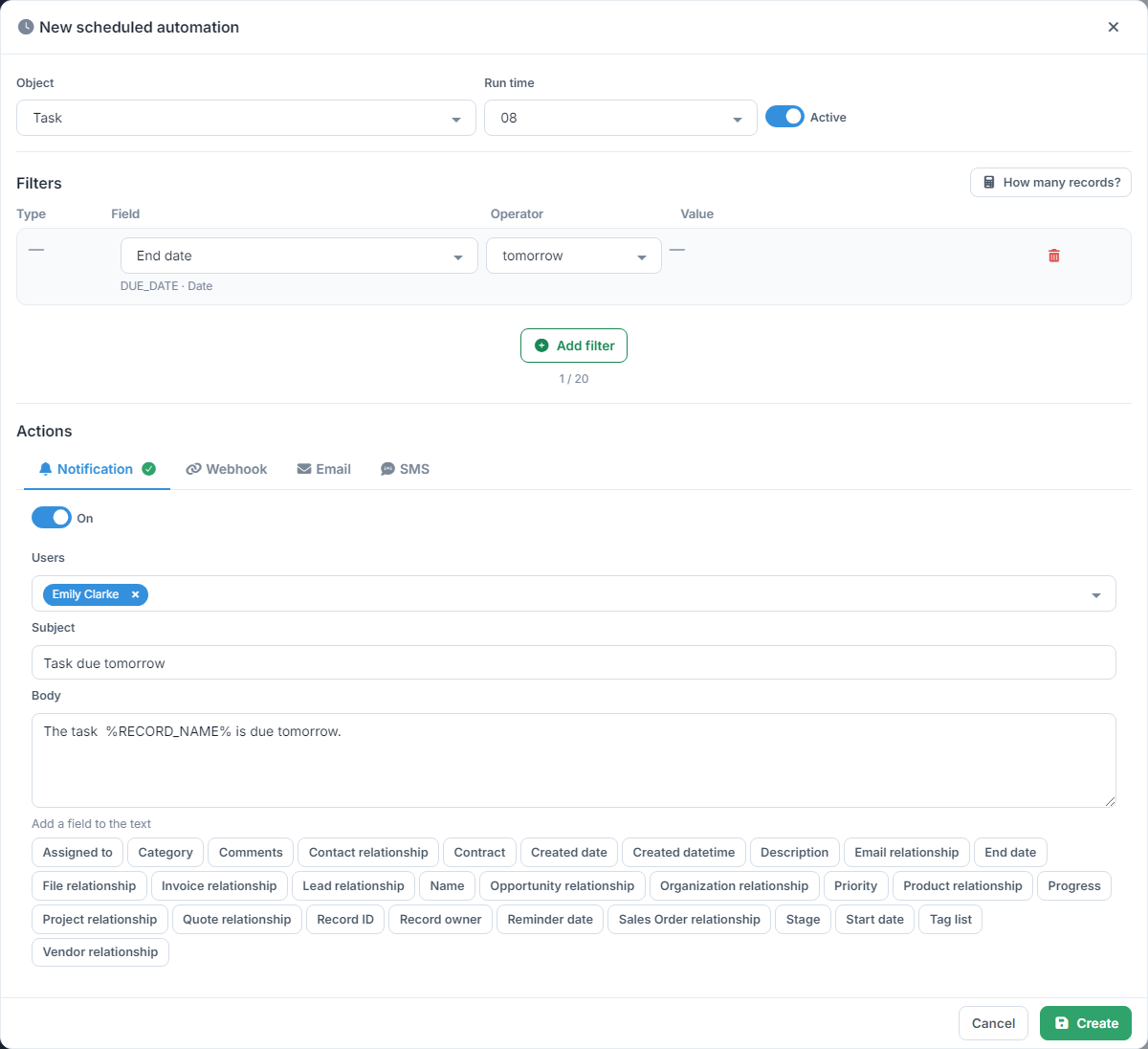
Under Actions, turn on one or more of the tabs. A tab with an active action has a green tick. Press Create to save the automation.
Notification
Choose the Users who get the notification inside the app, and write the Subject and Body. Clicking a field below the body adds its value, for example the name of the task. See the guide Notifications.
Webhook
Write the webhook's address (URL), a public http or https address. For each record, the app sends a POST call there with its data. The calls count towards your plan's daily webhooks limit.
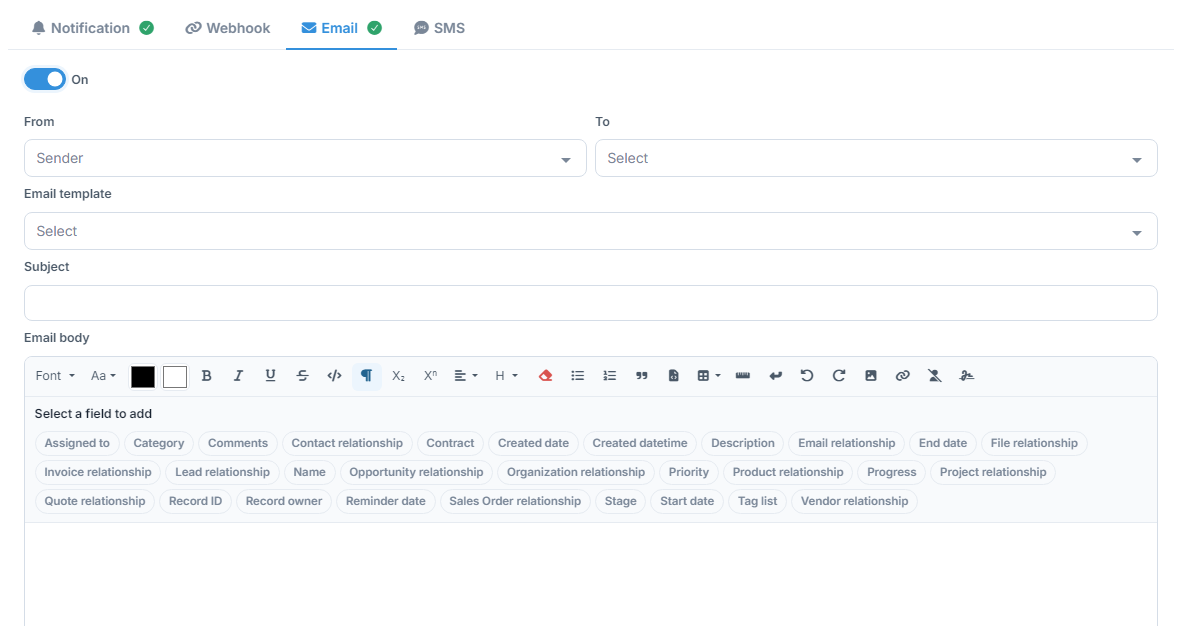
- From: the email account that sends it.
- To: the record's owner, the record's own email (if it has one) or a user of the company.
- Email template: optionally, fills in a template's text, and its subject if you haven't written one. See the guide Email templates.
- Subject and Email body, where you can add the record's field values.
Emails count towards your plan's daily email limit.
SMS
Choose an SMS template, and whether the message goes to a fixed number or to a phone field of the record. The content can include field values. For SMS you need to have connected an SMS provider and have SMS templates.
Runs and the log
When the automation runs, the company owner gets a notification with the number of records found. In the Execution log you see for each action whether it succeeded or failed, and the error, for example when the daily email or webhooks limit was reached.
The automation checks all the object's records, whatever their visibility.