SMS
Prepare SMS templates with record fields and send messages to your customers by hand or automatically, through the Apifon platform.
From Entryc you send SMS to your customers, by hand from a record or automatically from workflows and scheduled automations. You prepare the texts once as SMS templates, with fields that are filled in from each record.
Before you start: the SMS platform
Messages are sent through the Apifon platform, with your own account there. Connect it under Settings → Integrations, on the SMS Platform card, with the API Token, the API Key and the sender name. See the guide Integrations. Messages are charged to your Apifon account, and you see its balance with the Balance button on the same card.
SMS templates
Go to Settings → SMS. Here you see the templates, the object and phone field of each, and whether it's active.
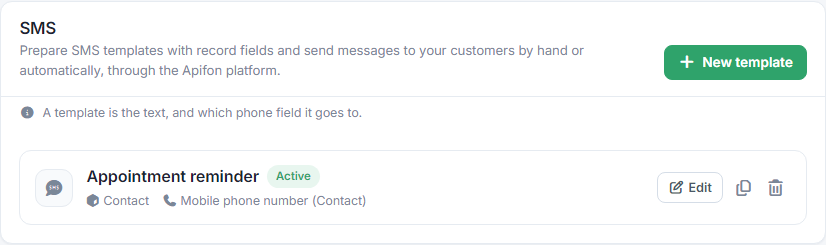
Press New template:
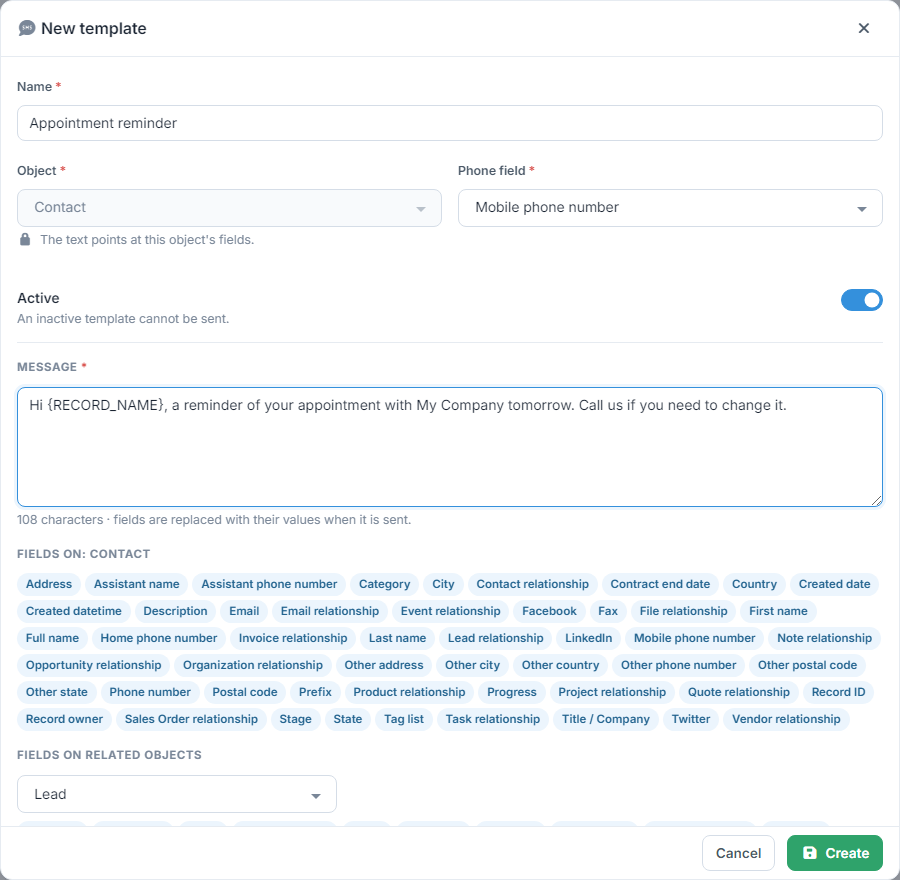
- Name: how you'll find it, e.g. "Appointment reminder". Two templates can't have the same name.
- Object: the records it's sent from, e.g. Contact. Once you've written text it can't change, because the text points at this object's fields.
- Phone field: which phone it's sent to, of the record itself or of a related one, e.g. the mobile of a task's customer.
- Active: an inactive template can't be sent, neither by hand nor by automations.
- Message: up to 600 characters. Click a field below the text to add it at the cursor, e.g. First name becomes
{RECORD_NAME}and is replaced with the record's name when sent. Under Fields on related objects you add fields of a linked record, and there are fields with your company's details too.
Press Create. From the list you change a template with Edit, make a copy with the clone icon and delete it with the bin icon. A company can have up to 50 templates.
Sending from a record
Open the record, e.g. a contact, and choose Send SMS from Actions.
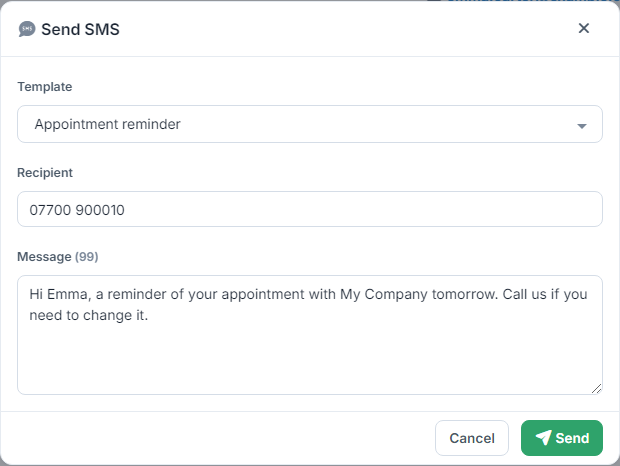
- Under Template you see the active templates of this object.
- The Recipient is filled in from the template's phone field, and the Message with the text and the record's values. You can change both before sending; the number next to Message counts the characters.
- Press Send. If the message isn't sent, you're told why, e.g. that the SMS platform isn't connected or that the number isn't valid.
To send from a record you must be allowed to see it.
Phone numbers and characters
- The country code is added automatically if it's missing: from the country field you've set for SMS in the object's settings, otherwise from your company's country. Spaces, dashes and the + are removed. Write numbers without 00 at the front.
- Messages with Greek or other non-Latin characters fit fewer characters in one SMS than Latin ones, so a long message may be charged as more than one SMS. You'll find the exact charges at Apifon.
Sending automatically
The same templates are also used automatically:
- in a workflow, with the Send an SMS action, e.g. when an appointment is created. See the guide Workflows.
- in a scheduled automation, e.g. every morning to the customers who have an appointment tomorrow. See the guide Scheduled automations.
SMS history
Every SMS is logged on the record, on the SMS history tab of its history: when it was sent, who sent it, from which sender, to which number and the platform's answer, "Sent" or the reason it failed. The delivery column shows when the platform accepted the message. See the guide Record history.
Permissions
To see and change the templates you need the SMS permission in your profile's settings. See the guide User profiles.