Exporting data
How to export selected or all records of an object to Excel or CSV, and how to download the file.
From any record list you can export records to an Excel or CSV file, either only the ones you select or all of them. The file is created in the background and sent to you by email.
Exporting selected records
In the record list, select the records with the checkbox at the start of each row and press Actions on selected → Export to CSV or Export to Excel.
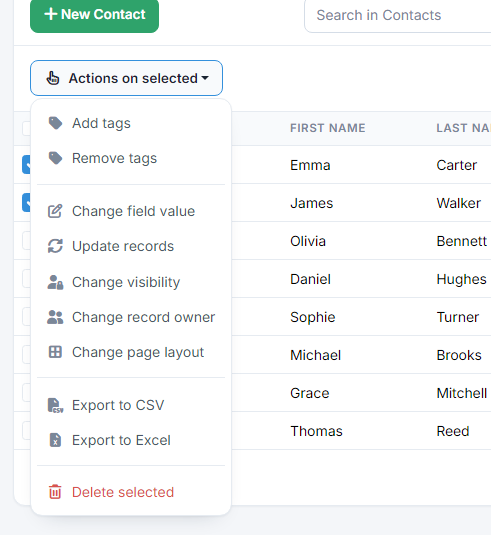
- The file contains the list columns you see. To export other fields, first change the columns from the gear → Select columns. See the guide List of records.
- Select all records exports every record in the list, not only the ones shown on the page.
- Exporting is available on the Free plan too.
Exporting all records
In the record list choose Actions (the lightning bolt) → Export records - Excel or Export records - CSV and confirm with Yes, export.
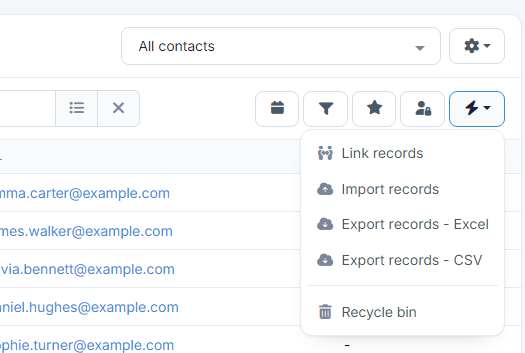
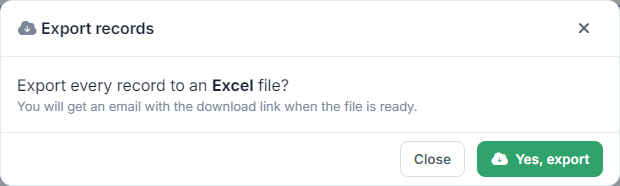
This export contains all the fields of the object, for every record you're allowed to see, whatever the list's filters or search. Records in the recycle bin aren't included.
Downloading the file
When the file is ready, you get an email with the subject Data export - Entryc. Press Download file to download it.
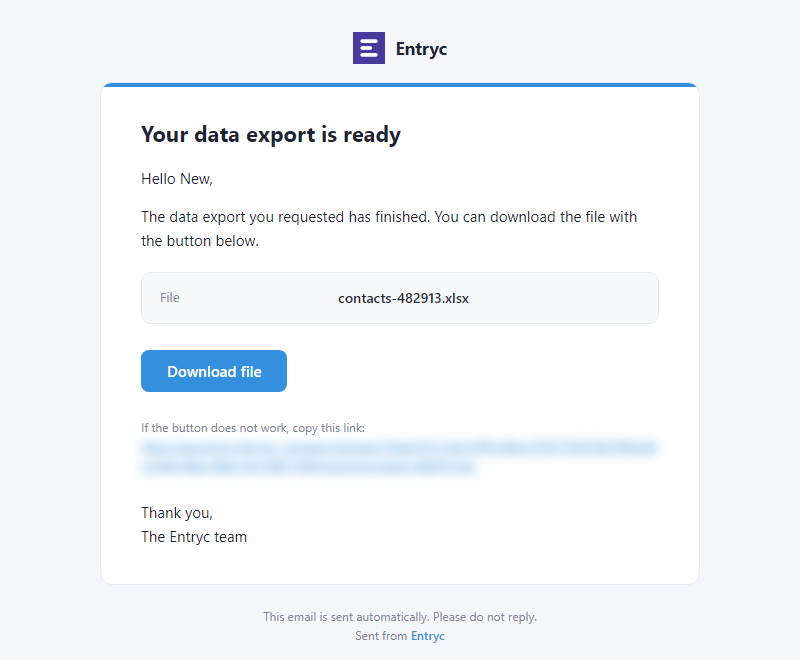
To download it you must be logged in to Entryc as a member of the company. If you don't see the email, check your spam folder too.
A copy of all your data
To export all the company's objects together, for example as a backup, see the guide Data export. For the reverse, see the guide Importing records from Excel.