Calendar
See your and your colleagues' events and tasks by day, week or month, and create new events straight from the calendar.
The Calendar shows events and tasks in one place, yours and your colleagues'. You open it from Calendar in the menu.
The calendar screen
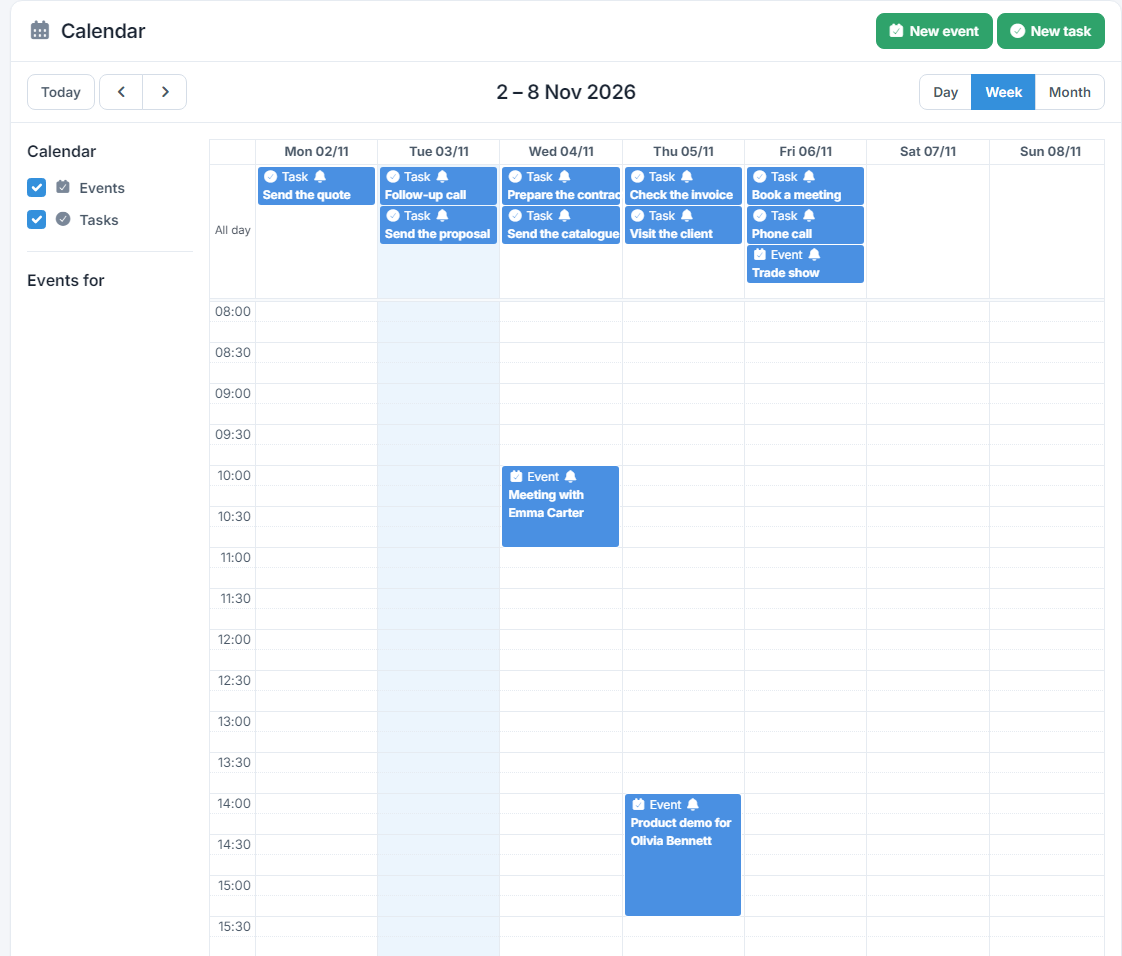
- At the top right you choose the view: Day, Week or Month. The arrows go to the previous or next period, and Today brings you back. The week starts on Monday.
- Events appear at their times. All-day events, like tasks on their due date, appear in the All day row at the top of the day or week.
- The bell next to an entry means it has a reminder.
- Times are shown in your profile's timezone. See the guide User settings.
What's shown
On the left you choose what to see:
- Under Calendar you turn Events and Tasks on or off. For some company types, other objects with dates appear here too, such as appointments, visits or renewal reminders.
- Under Events for and Tasks for you choose whose entries you see, and the square next to each name changes their colour. Events belong to their owner and tasks to the user they're assigned to.
- Your choices and the view you used last are saved automatically, for you only.
- You only see entries you're allowed to see. If you choose a colleague, their private entries don't appear, and if your profile can't see an object, e.g. Events, you don't see them here either.
New event from the calendar
Click a time or drag the mouse from the start time to the end time. The New Event form opens with the start, the end and a reminder 15 minutes before already filled in.
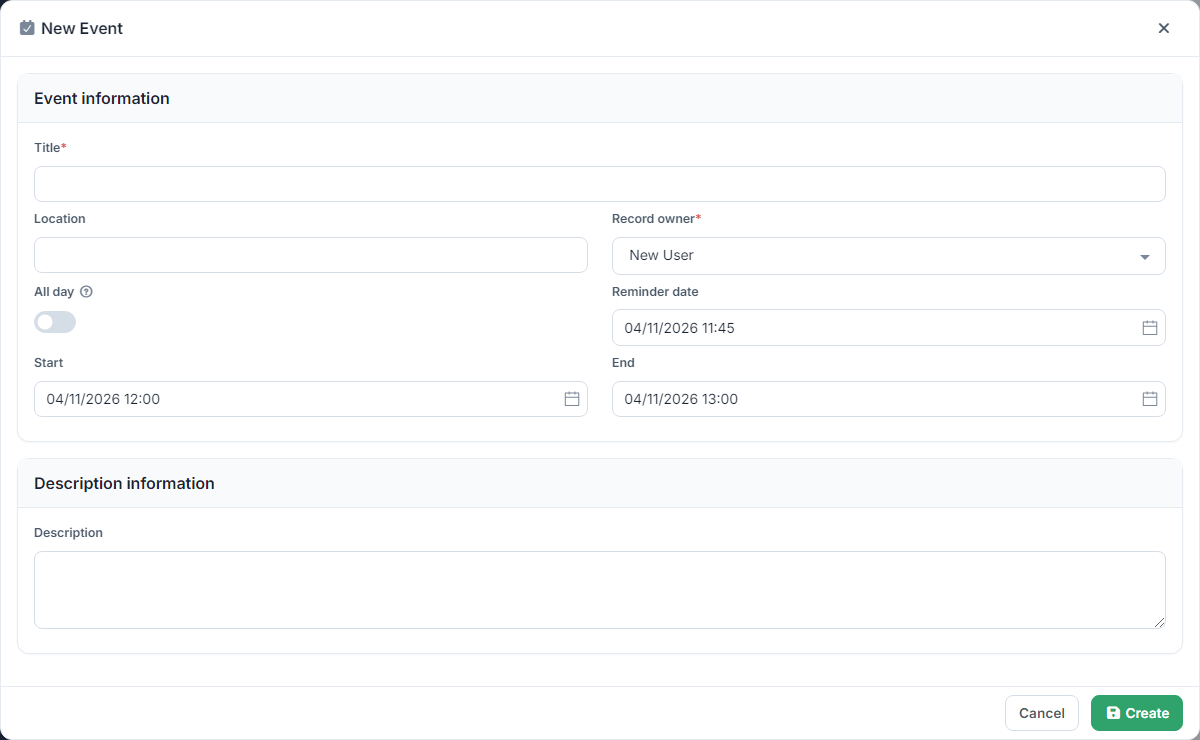
- In the All day row or in month view you create an all-day event. If you drag across several days, e.g. Wednesday to Friday, the event covers all of them.
- Fill in the Title and anything else you want, and press Create. The event appears in the calendar straight away.
- The New event and New task buttons at the top right open the full create form.
Opening an entry
Click an event or task to see its details in a window. Open the record in a new tab opens it in full, so you can edit it.
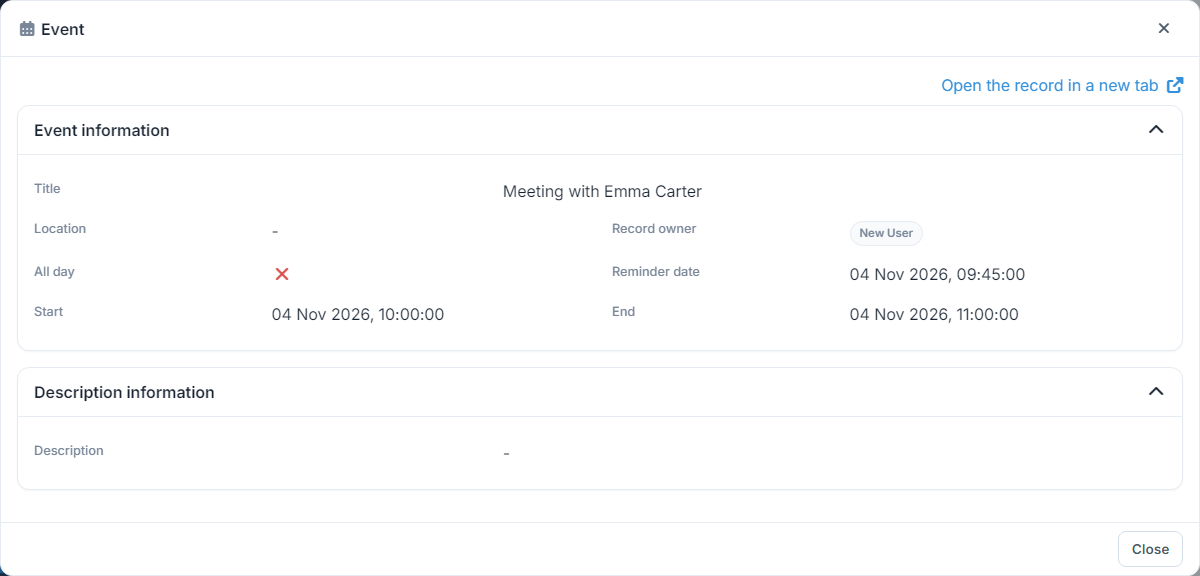
Entries can't be moved by dragging them in the calendar: to change a date or time, open the record and change the start, the end or the due date.
Google Calendar and Outlook Calendar
If you want events to appear in your Google or Outlook Calendar too, connect it under Integrations and use a workflow with the Create a calendar event action. See the guides Integrations and Workflows.