Recurring records
Create one record per period automatically for each client or other record, e.g. a VAT task every month before the deadline.
With Recurring records, Entryc automatically creates one record per period for each record that matches your filters. For example, a VAT task for each client every month, a few days before the deadline, or a monthly fee for each contract.
You find them under Settings → Recurring records. They're available on paid plans.
The list
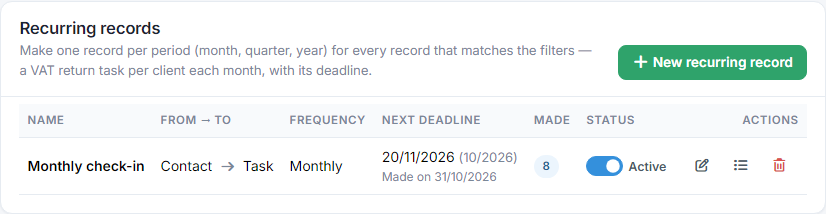
- From → To: which records it's for (e.g. Contact) and what it creates (e.g. Task).
- Next deadline: the next deadline, its period, and below it the date the records are made.
- Made: how many records it has created. A red number counts the ones that failed; they're retried every day until the deadline.
- Status: the switch turns it on or stops it.
- Under Actions you find edit, the log and delete.
New recurring record
Press New recurring record, give a Name and fill in the three steps.
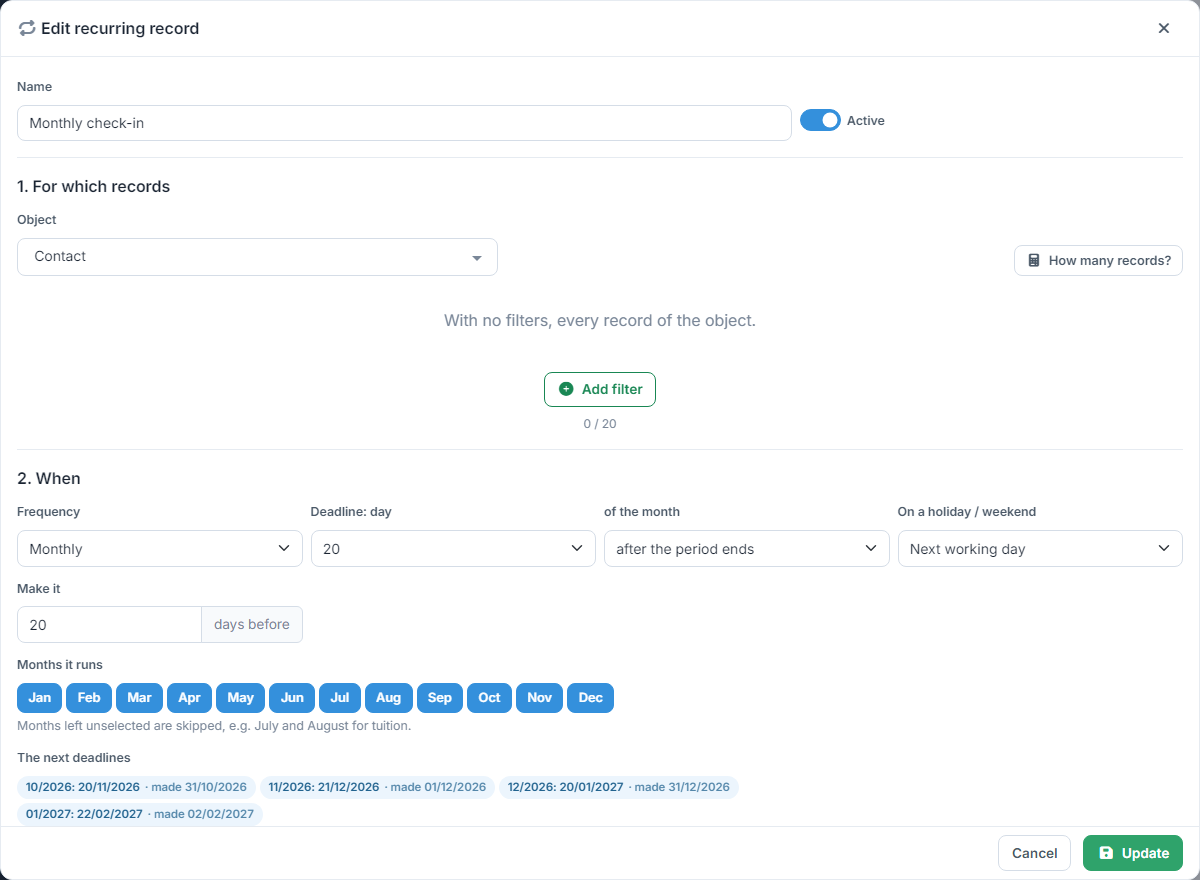
1. For which records
- Under Object you choose where it starts from, e.g. Contact or Client. One record is made for each.
- Add filter narrows them to the ones you want (up to 20 filters), e.g. only the clients with monthly VAT. With no filters it applies to every record of the object. How many records? shows how many they find today.
2. When
- Frequency: Monthly, Every two months, Quarterly, Every six months or Yearly. Periods follow the calendar, e.g. the quarters are Jan–Mar, Apr–Jun.
- Deadline: the day (or the last of the month) and the month: the month the period ends, the one after, or a few months later. If the month has fewer days, e.g. 31 in February, it takes its last day.
- On a holiday / weekend: the deadline stays as it is or moves to the previous or next working day. For companies in Greece, Greek public holidays count too, Easter included.
- Make it … days before: how many days before the deadline the record is created.
- Months it runs: with monthly frequency, the months left unselected are skipped, e.g. July and August for tuition.
- The next deadlines shows the next four deadlines straight away, and when each one will be made.
3. What it makes
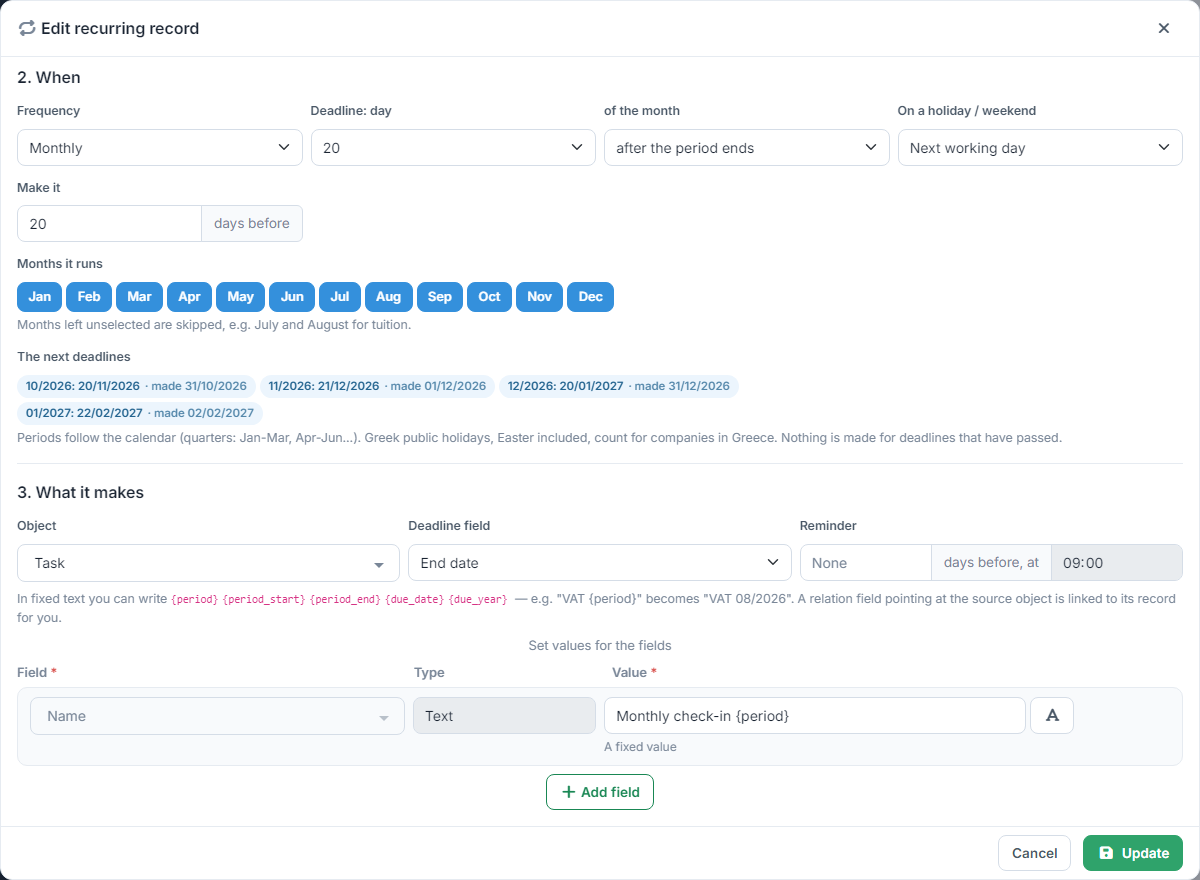
- Under Object you choose what's created, e.g. Task.
- The Deadline field gets the period's deadline. If the object has a reminder, you also set how many days before and at what time.
- Add field sets the values of the new record. The button next to the value switches between a fixed value and a field of the original record. The name is required.
- In fixed text you can write
{period},{period_start},{period_end},{due_date}and{due_year}, e.g. "VAT {period}" becomes "VAT 10/2026". - A relation field pointing at the source object is linked automatically: a client's task is linked to the client.
Press Create. A new recurring record is active from the start, unless you turn off the Active switch.
When the records are made
- The check runs once a day, from 06:00 in the company's timezone. When you save or turn on a recurring record, it's checked again within the hour.
- One record is made for each period, from the creation day up to the deadline. Nothing is made for deadlines that have already passed.
- If a new record is added, e.g. a new client, it gets its own at the next check too, as long as the deadline hasn't passed.
- The same period is never made twice for the same record, even if you change the frequency and then change it back.
- Records are created in the name of the company owner, and the owner gets a notification with how many were made.
Log
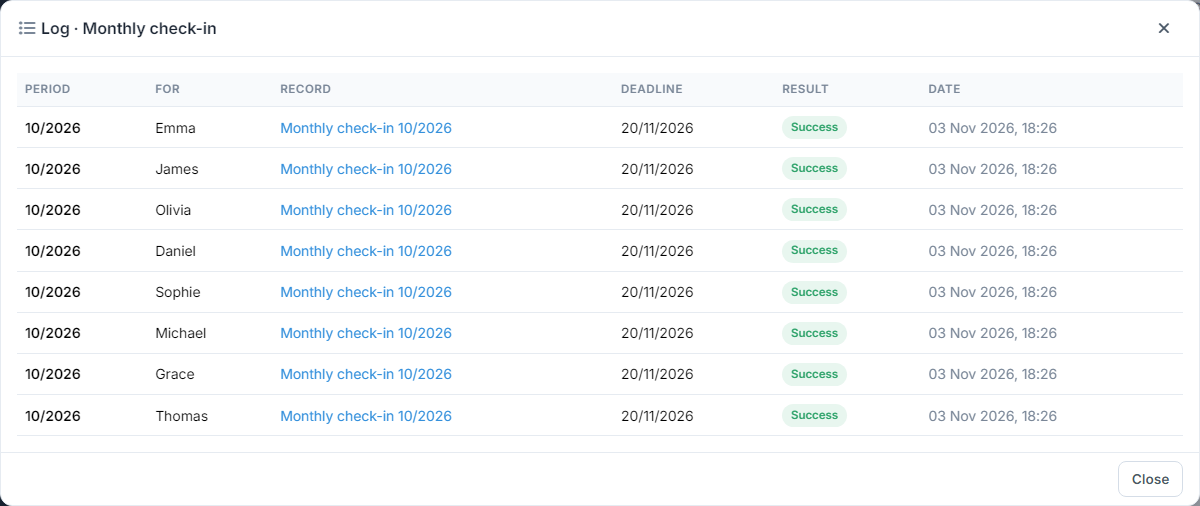
The Log button shows what it has made: the period, which record it was for, the new record (with a link), the deadline and the result. For a failure the reason is shown too.
Deleting, limits and permissions
- If you delete a recurring record, the records it has already made stay.
- Active recurring records per plan: Basic 10, Plus 25, Professional 50, Enterprise 100. They aren't available on Free. If the subscription moves to a smaller plan, the newest ones above the limit are turned off.
- For some company types, e.g. accounting firms or building management, the company starts with ready-made recurring records, inactive. Check them and turn on the ones you need.
- To see and change the page you need the Scheduled automations permission in your profile's settings. See the guide User profiles.