History & event log
See who logged in to the company and from where, and what changed in its records, by whom and when.
The History & event log page shows two things: who logged in to the company and from where, and what changed in its records, by whom and when. You find it under Settings → History & event log.
- To see the page you need the History & event log permission (read) in your profile's settings. To turn on logging or clear the login history you also need edit. See the guide User profiles.
Logins & security
The first tab logs the logins of the company's users. Logging is off at first: turn on the User event logging switch to start it.
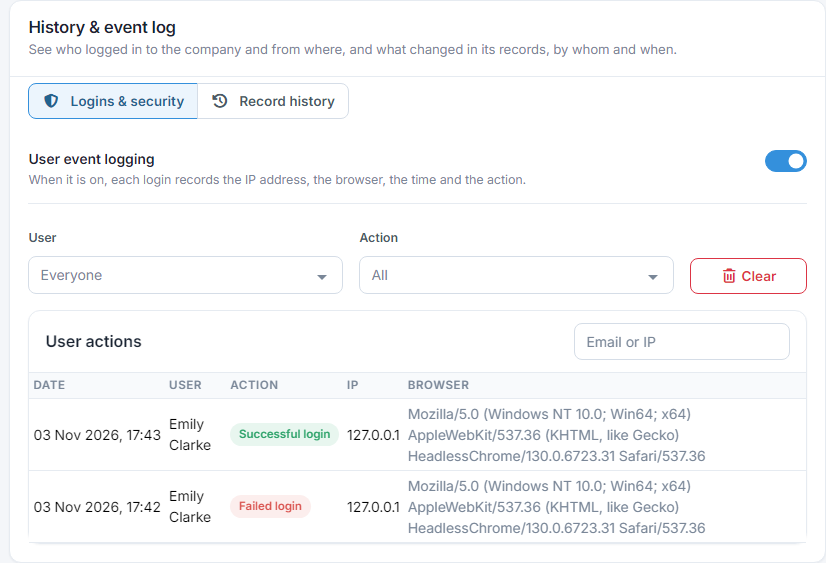
For each event you see the date and time, the user, the action, the IP address and the browser. These are logged:
- Successful login: every login, with email and password, with Google or Microsoft, and from the mobile app.
- Failed login: an attempt with the wrong password on the email of a company user. Many failures in a row for the same user are worth a look.
- Password change: when a user changes their password from their user settings, or resets it with "Forgot your password" on the login page.
The User and Action filters narrow the list, and in the Email or IP box you search for an email or a specific IP address. The list shows 15 events per page, newest first.
Events from before you turned logging on don't exist. If you turn the switch off, logging stops, but what has been logged stays.
Clearing the login history
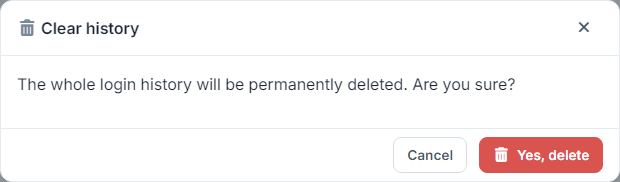
The Clear button deletes the company's whole login history, not only what the filters show. The deletion is permanent, so you're asked to confirm.
Record history
The second tab shows all the changes to the records of an object together, e.g. every contact created and edited. This history is always kept, whatever the switch on the first tab.
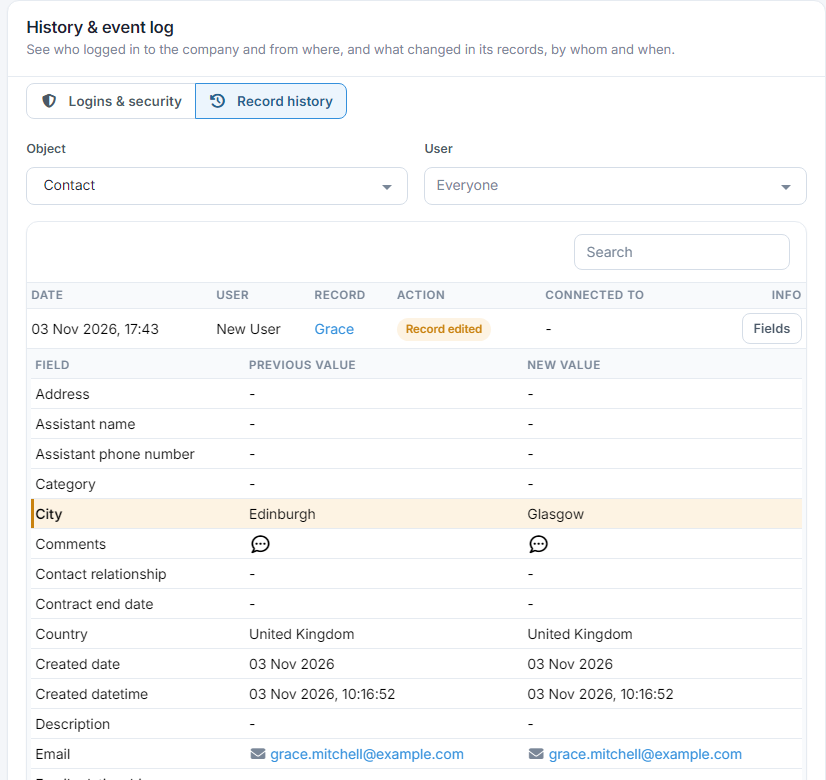
- Under Object choose which object to see. Only the objects your profile is allowed to see are listed.
- Under User you see only one user's changes, or the ones made by Workflows or the API.
- Search looks inside the values before and after the change, e.g. an email or a name.
- Press Fields on a row to see the previous and new value of each field. The fields that changed are highlighted. The name in the Record column opens the record.
You can also see a single record's history inside the record itself. See the guide Record history.